Cloning a Course
This feature is for SA
Cloning duplicates a course as a brand-new, independent draft — its own topics and its own copies of every document/image/link, ready to edit without touching the original.
Steps
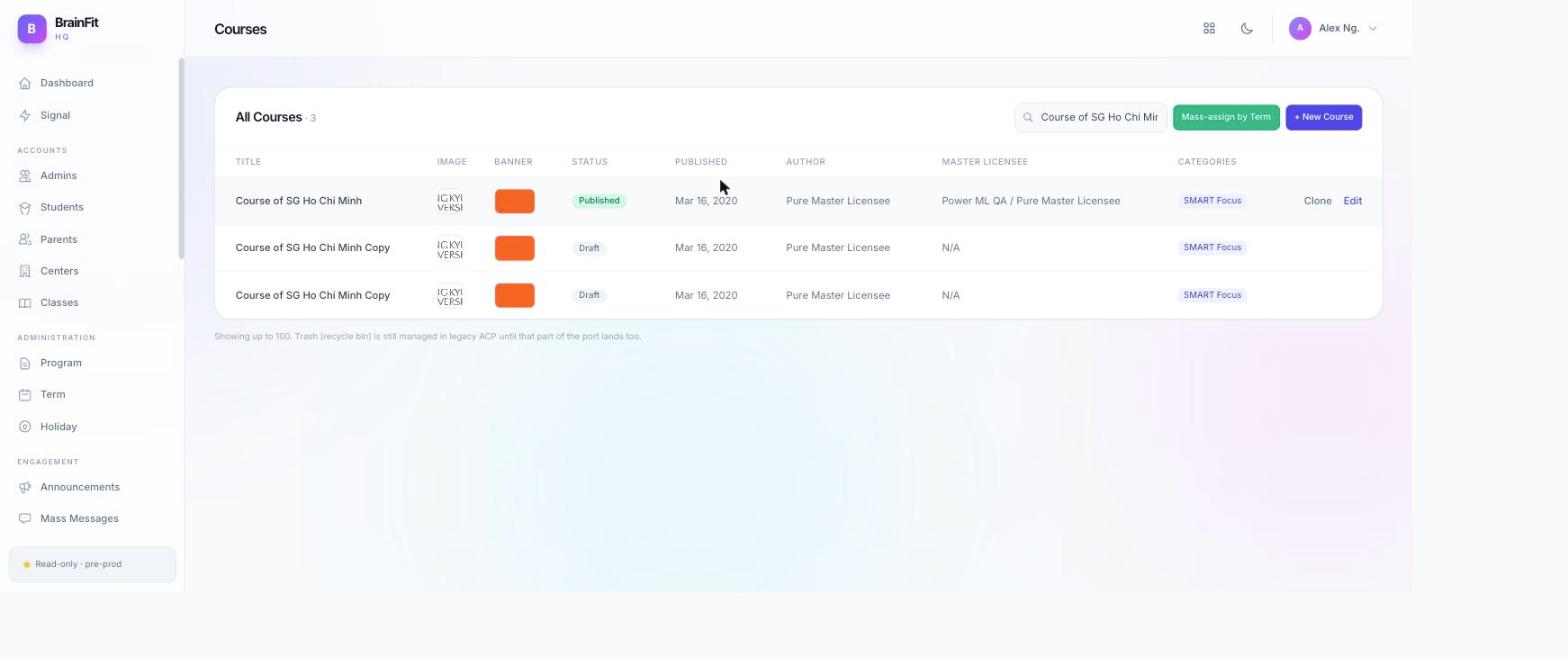
- From HQ > LMS > Courses, hover a row and click Clone.
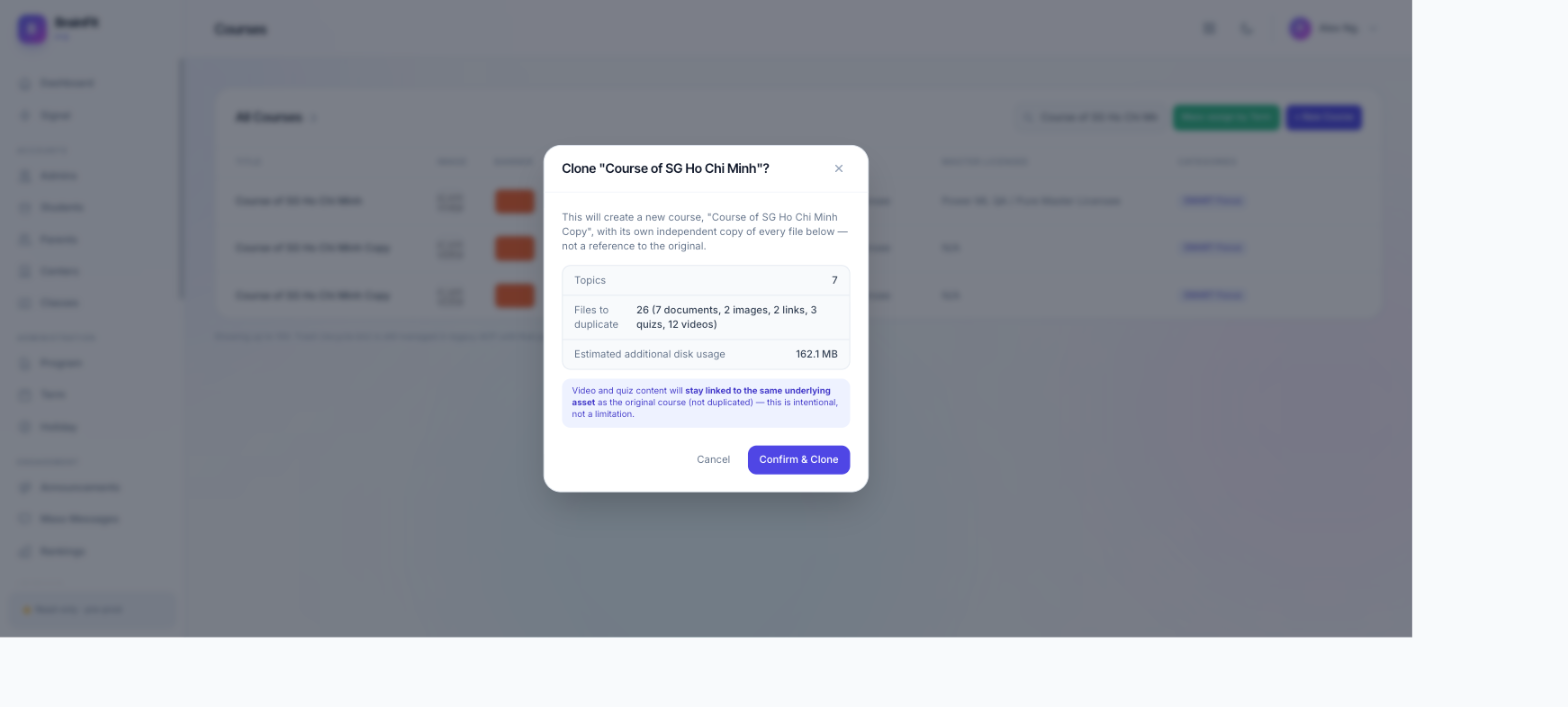
- A confirmation dialog shows exactly what will happen before anything is created — topic count, how many files will be duplicated (broken down by type), and the estimated extra disk space it'll use. Review it, then click Confirm & Clone.
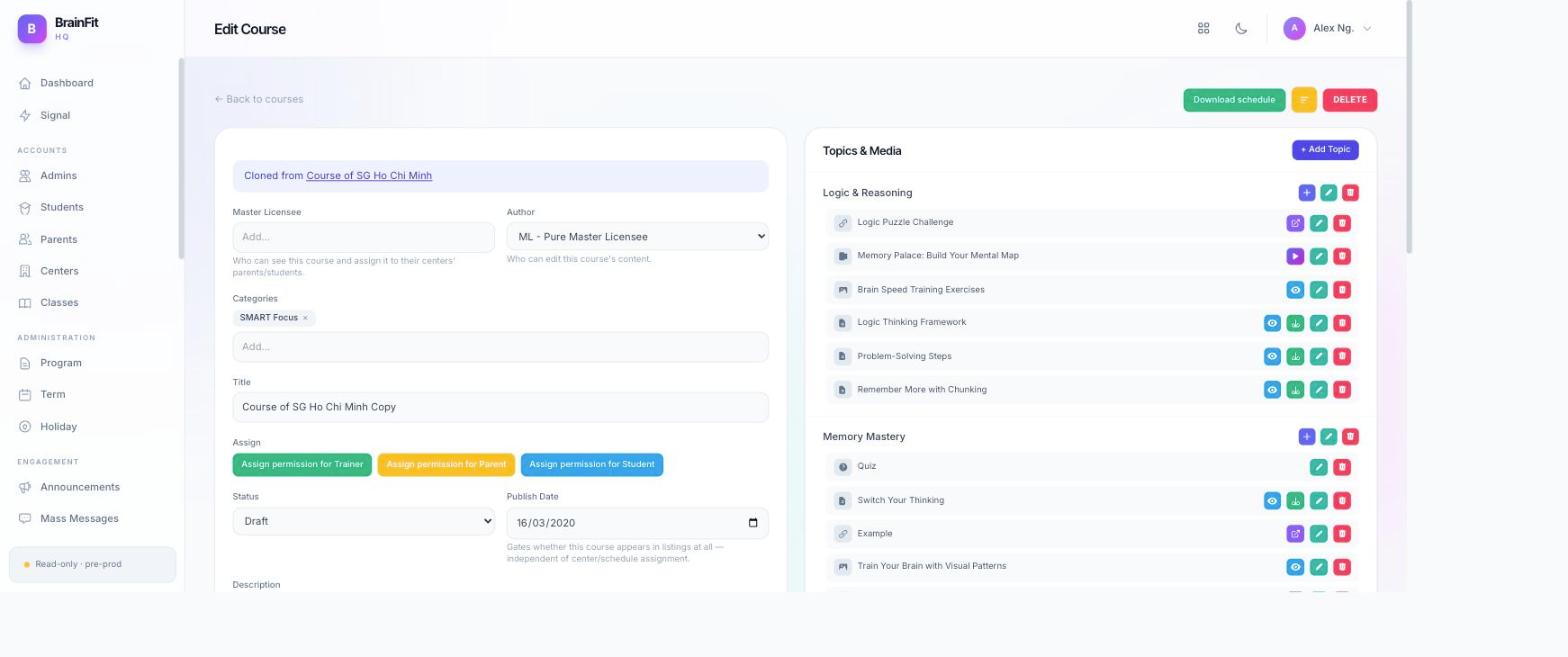
- You're taken straight to the new course's Edit page. It's titled "
<original>Copy" and saved as a Draft — it won't appear anywhere for real users until you publish it. A "Cloned from" link at the top always points back to the source course, so the relationship isn't lost.
What actually gets duplicated, and what doesn't:
- Documents, images, and links — a real, independent copy of every file. Editing or deleting one on the clone never touches the original.
- Video and quiz content — intentionally not duplicated. A cloned video keeps playing from the exact same StreamCenterAI asset as the original (no re-upload, no re-transcode, no wait), and a cloned quiz stays linked to the same quiz record. This is by design, not a limitation — the confirmation dialog says so explicitly before you clone.
- Categories carry over; schedules/assignments do not — a clone starts unassigned, so publishing it never accidentally exposes it to the original's students/parents/trainers.
The same clone action is also still available in legacy ACP, using the identical mechanism — either surface produces the same result.