BrainFit HQ
Brain HQ is the new look for BrainFit ACP. It is the same ACP, with the same data, permissions and features, in a cleaner, faster layout. You can switch it on and off any time; nothing about your data changes.
The screenshots in these guides come from a practice training centre with pretend students and parents.
Why Brain HQ
- More room for your work. The menu moves from the left sidebar to a bar across the top, so tables and forms use the full width of the screen.
- Cleaner screens. Lighter tables, clearer buttons and forms, one consistent style on every page.
- Fewer clicks. Related menus are grouped, the dashboard has a search box that jumps straight to a student, class or centre, and student and class pages show everything on one page.
- Easier to learn. Every button has a tooltip, and every menu item has an icon.
- Light and dark mode, and it works on phones and tablets.
| Classic | Brain HQ |
|---|---|
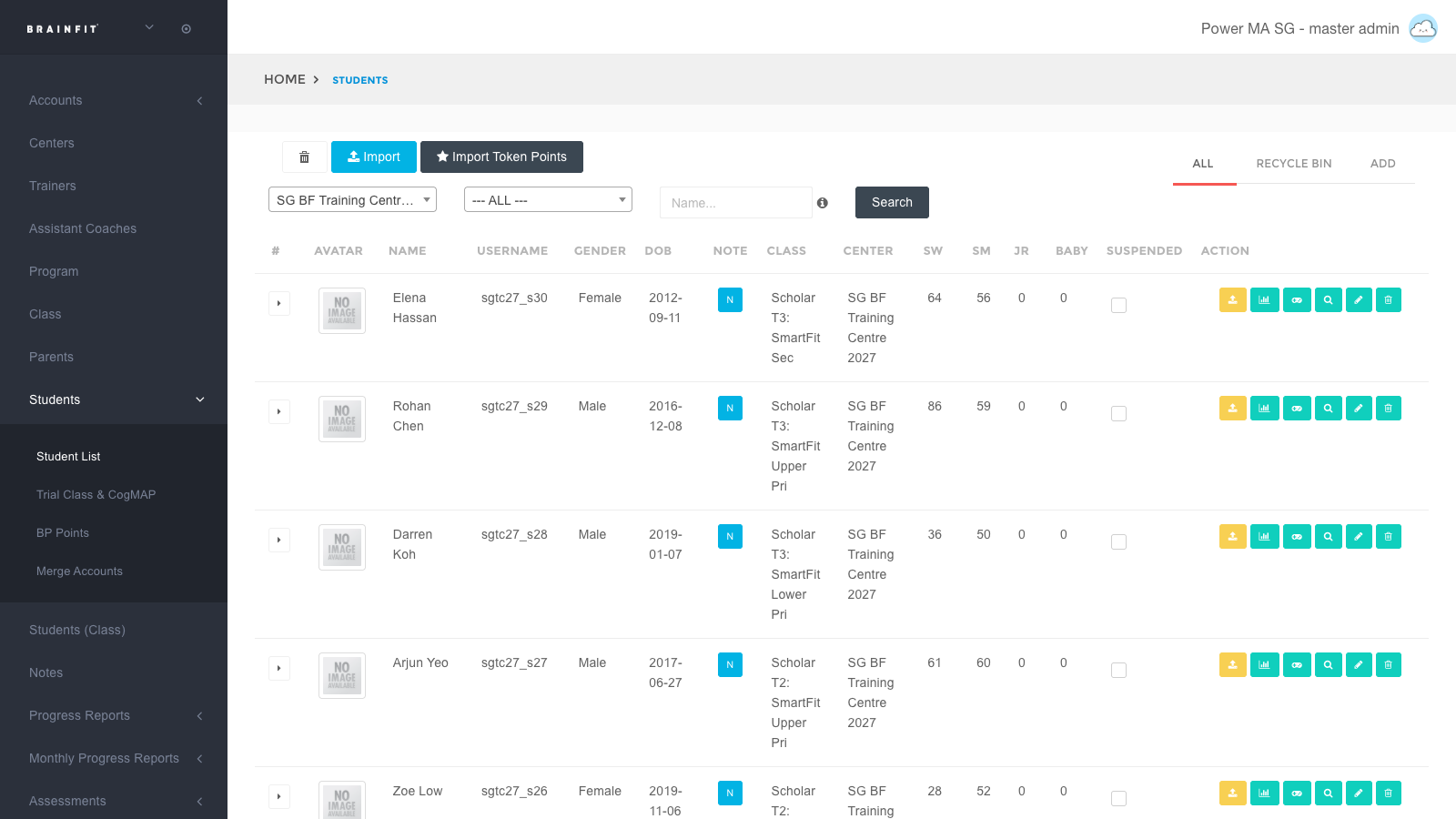 | 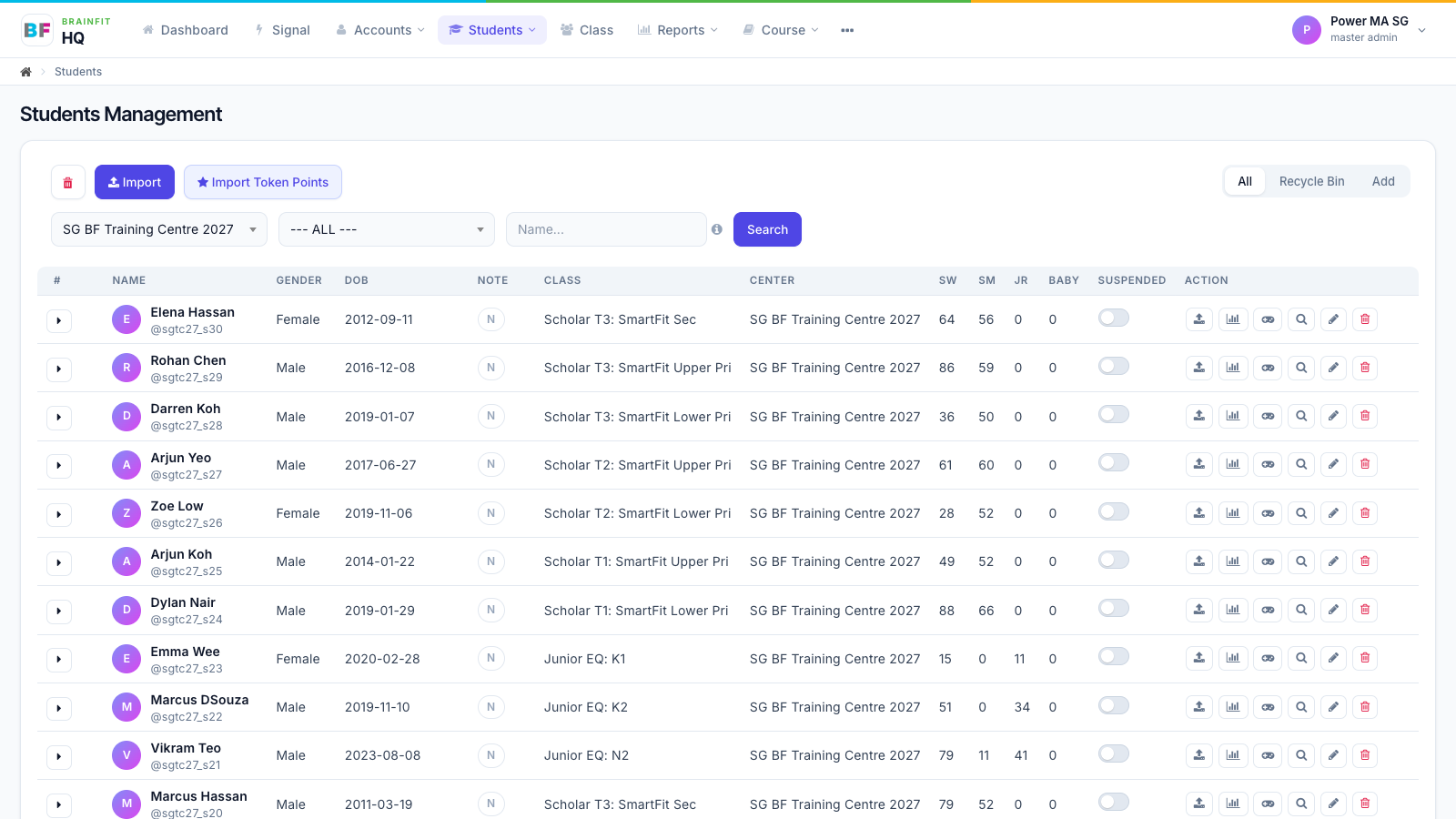 |
How to log in to BrainFit HQ
BrainFit HQ has its own address: hq.brainfitstudio.com. It always opens the new Brain HQ look. The older address, acp.brainfitstudio.com, still works exactly as before, with its own login and the theme switch.
First time on hq? Log in once: signing in on acp does not carry over to hq.
Watch (about 1½ minutes):
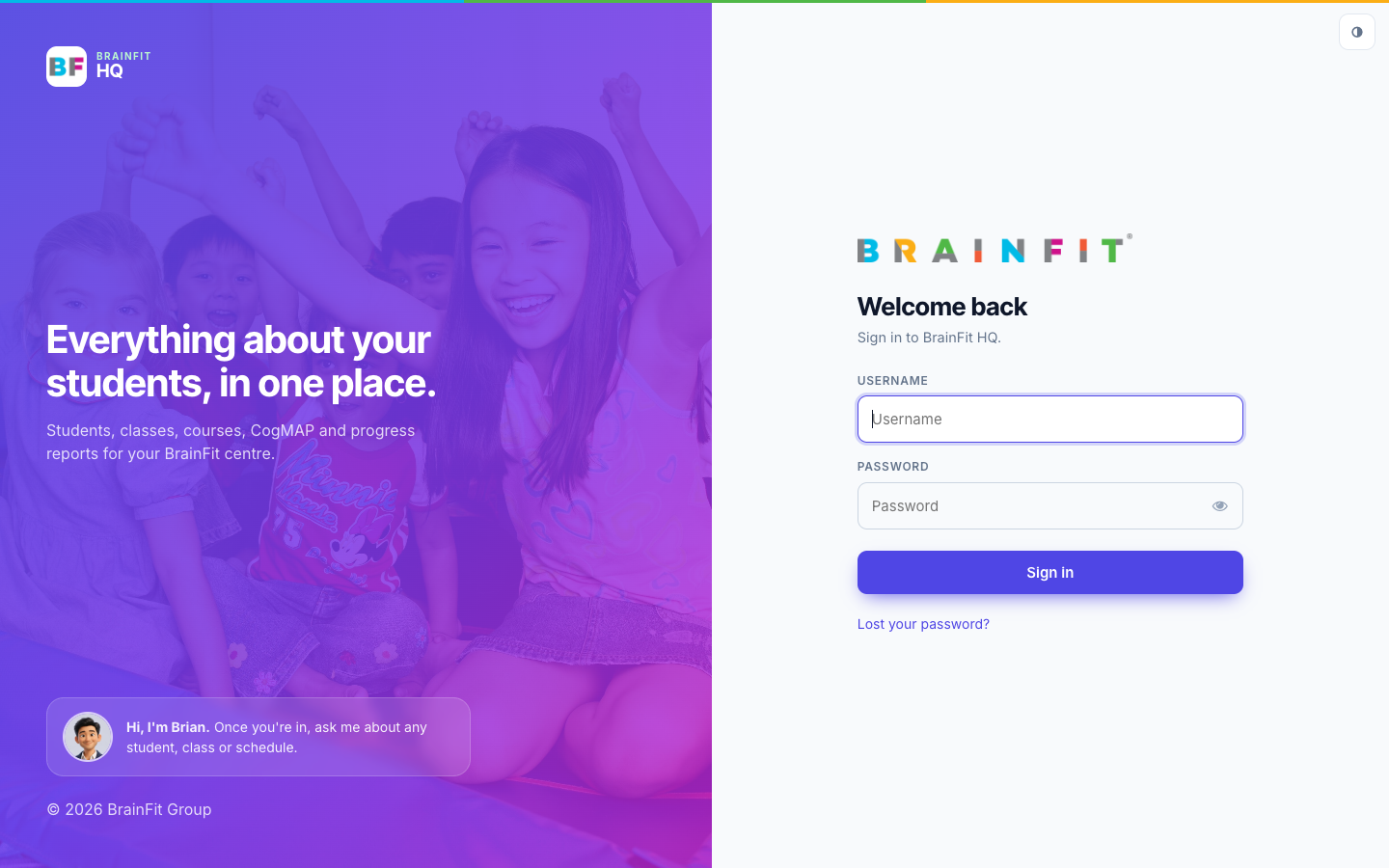
1. Sign in
Type your username and password, then click Sign in. The eye icon shows or hides what you type.
2. Enter the code (staff with two-factor sign-in)
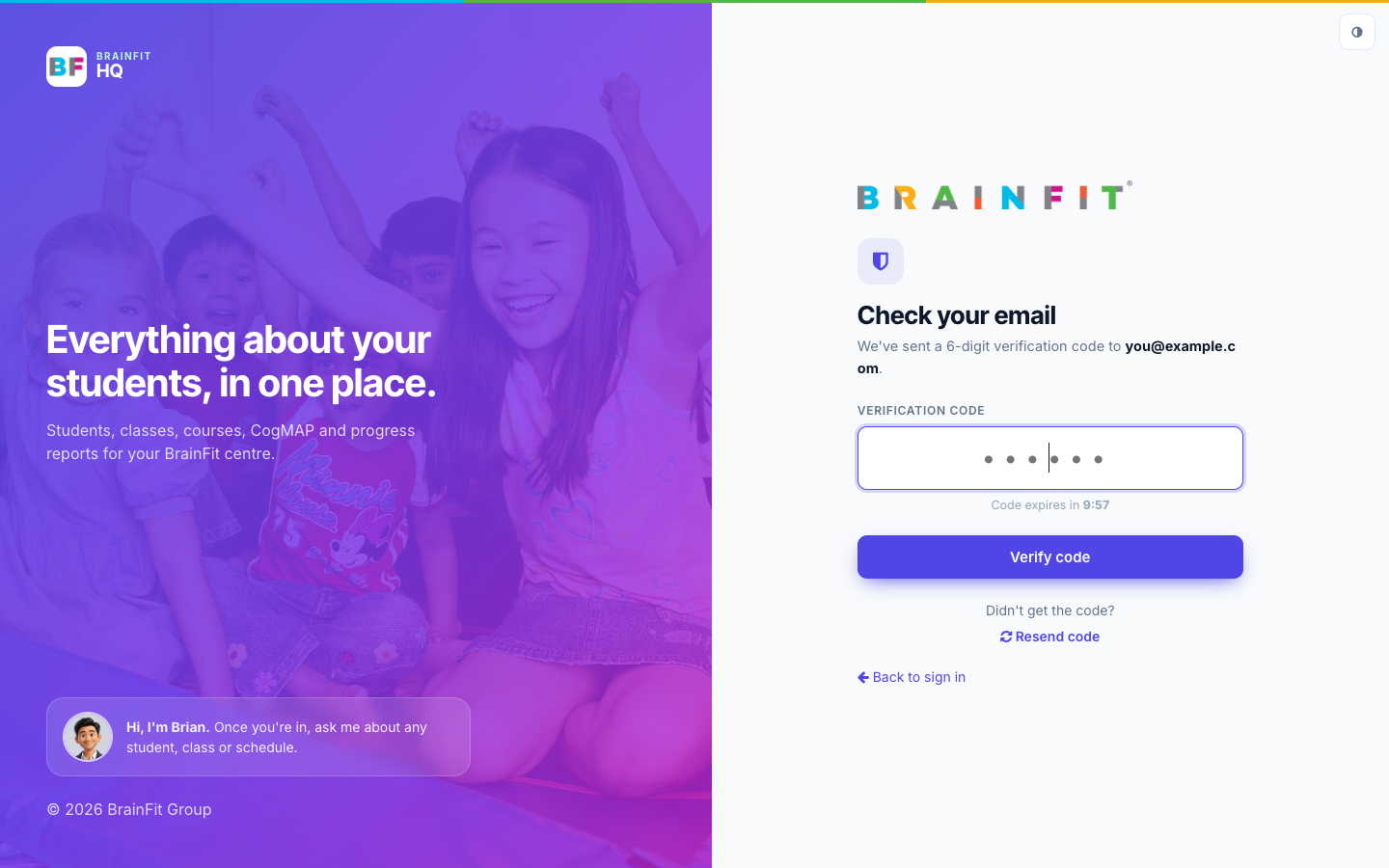
If your account uses two-factor sign-in, we email you a 6-digit code. Type it in: it submits by itself. The code lasts 10 minutes, and Resend code sends a new one.
3. If you forgot your password
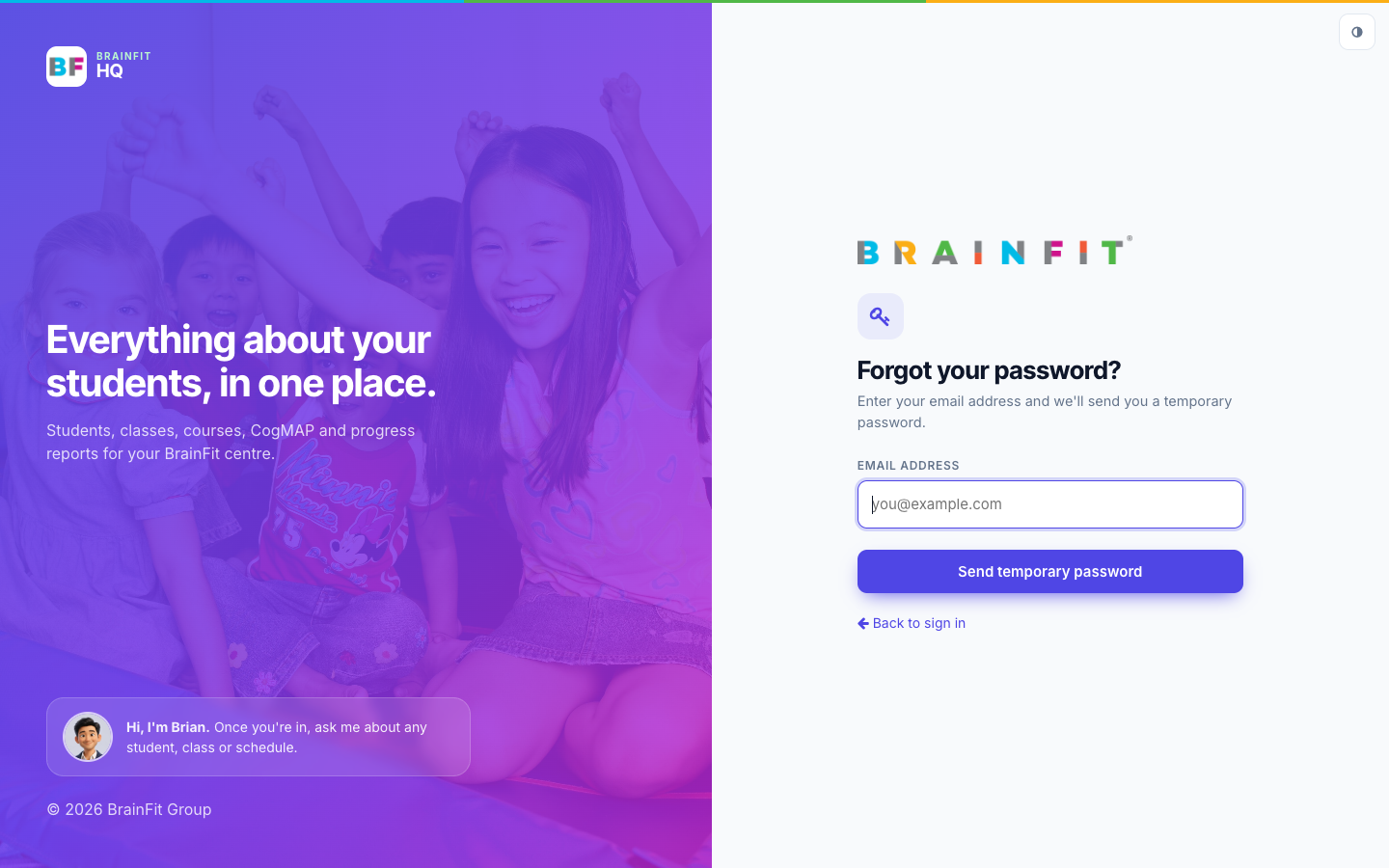
Click Lost your password?, enter your email address and click Send temporary password.
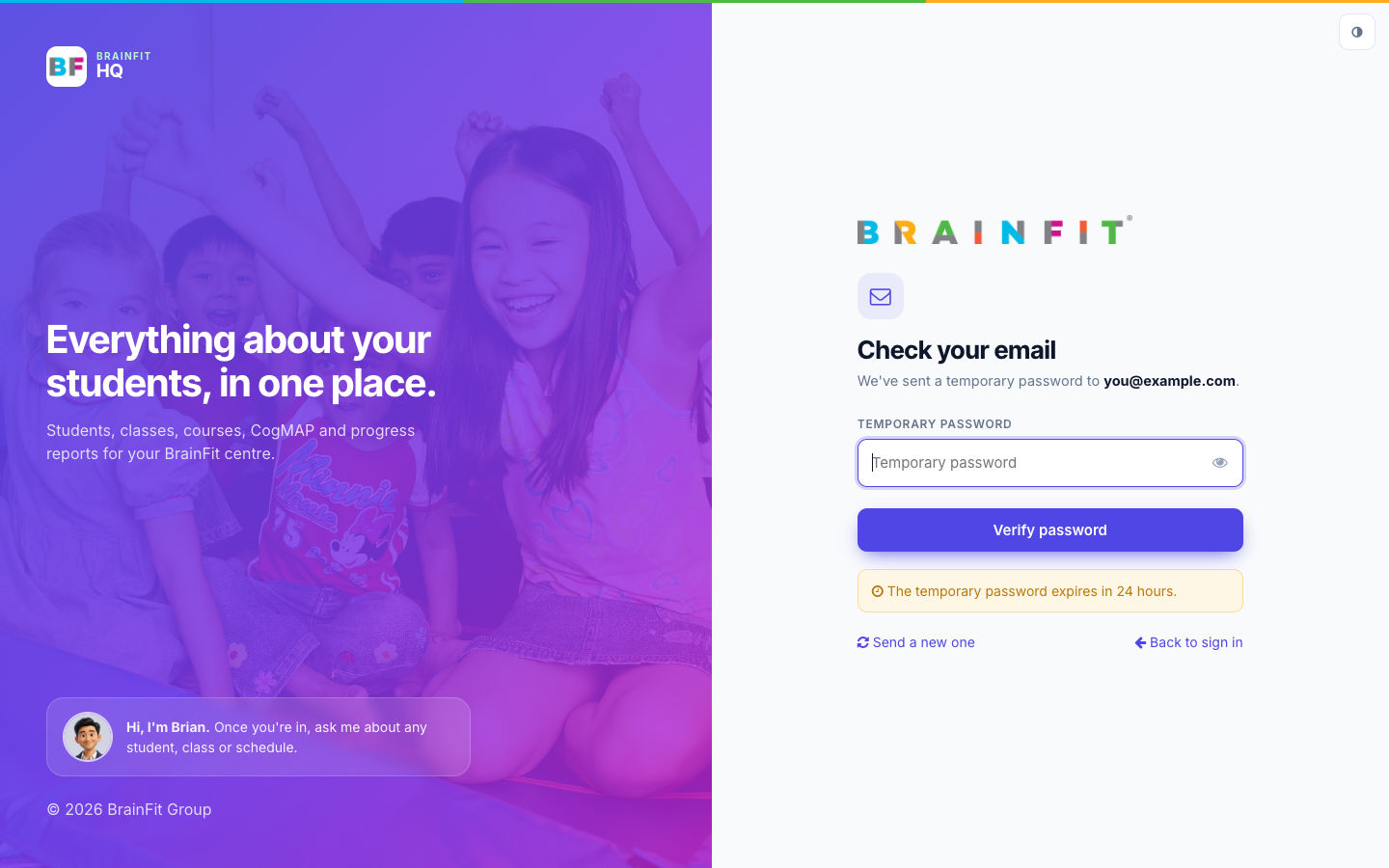
Copy the temporary password from the email and enter it. It is valid for 24 hours; if it has expired, click Send a new one.
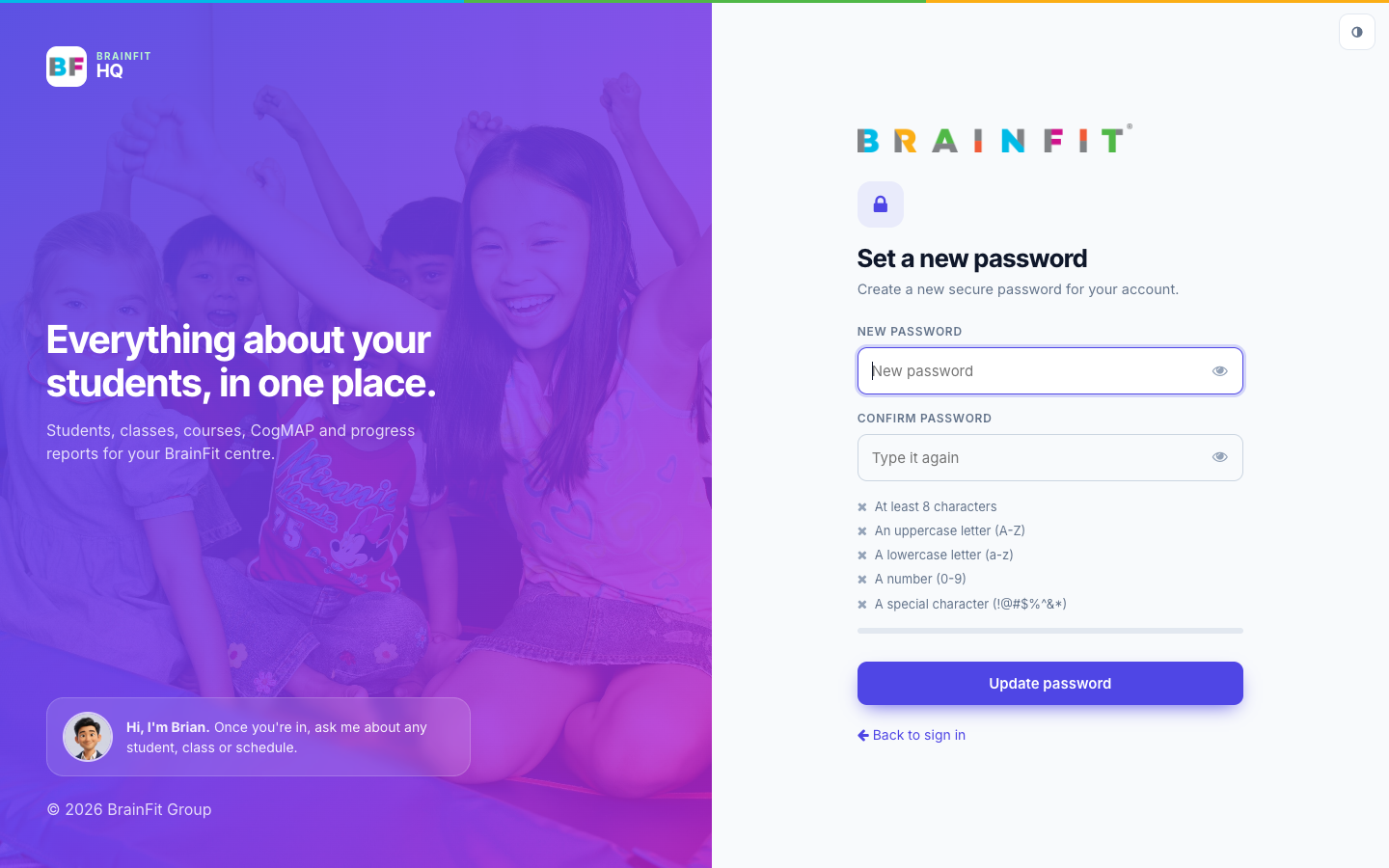
Then choose a new password that meets the requirements (the list and the strength meter update as you type), type it again to confirm, and click Update password.
On a phone
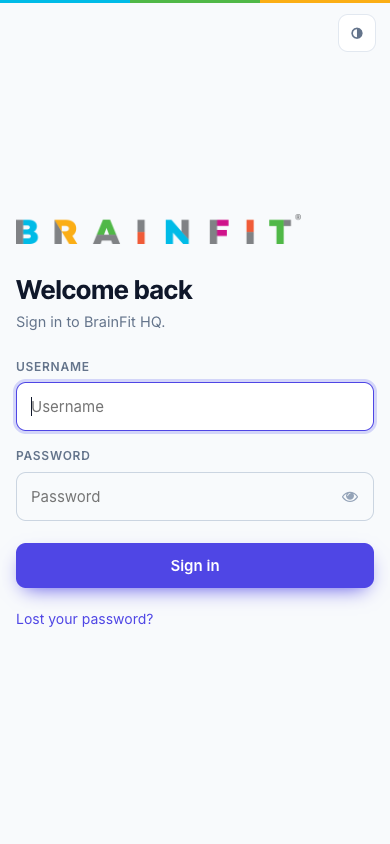
The login page works on a phone too.
What changed the most
1. A menu across the top
All main sections now sit in one bar at the top: Dashboard, Signal, Accounts, Students, Class, Reports, Course and ⋯ (more).

2. Related menus are grouped
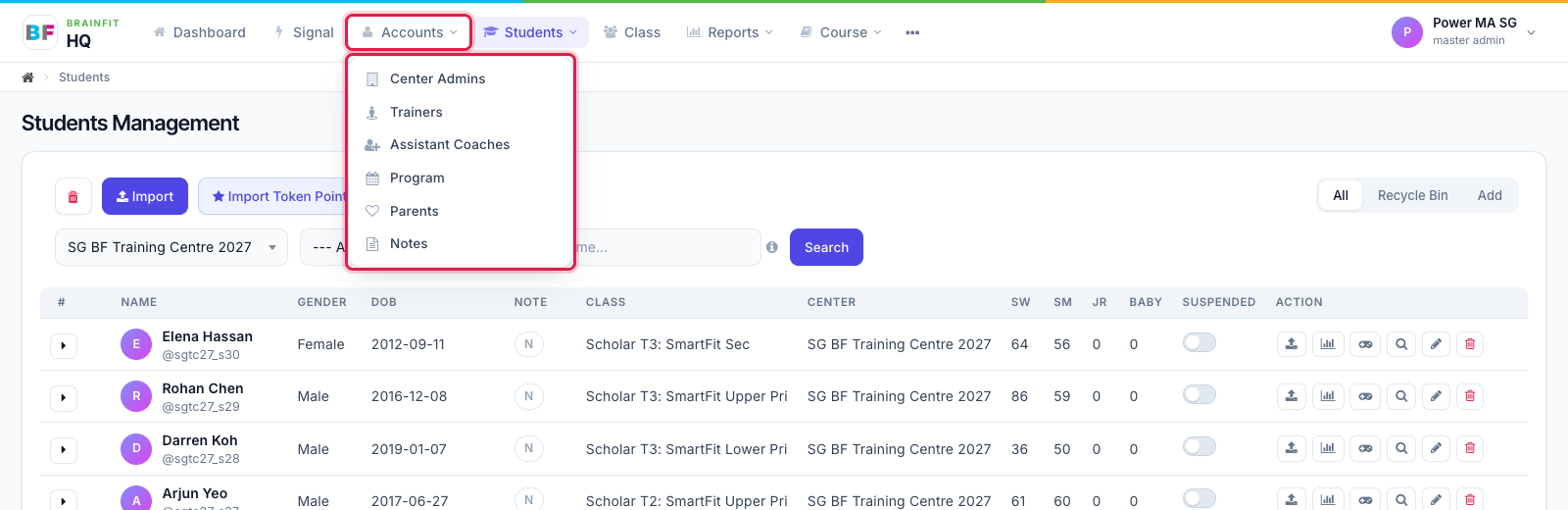
- Accounts holds the people menus: Center Admins, Trainers, Assistant Coaches, Program, Parents and Notes.
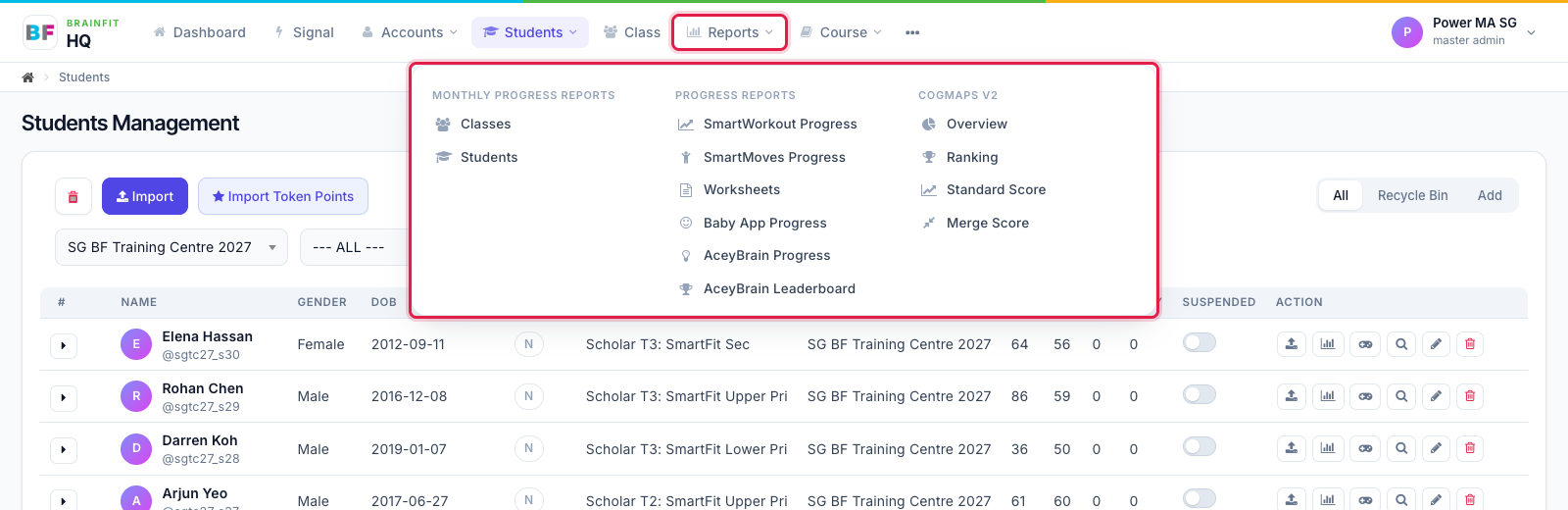
- Reports brings together what used to be three separate menus: Monthly Progress Reports, Progress Reports and CogMAP V2, side by side in one panel.
3. The ⋯ menu
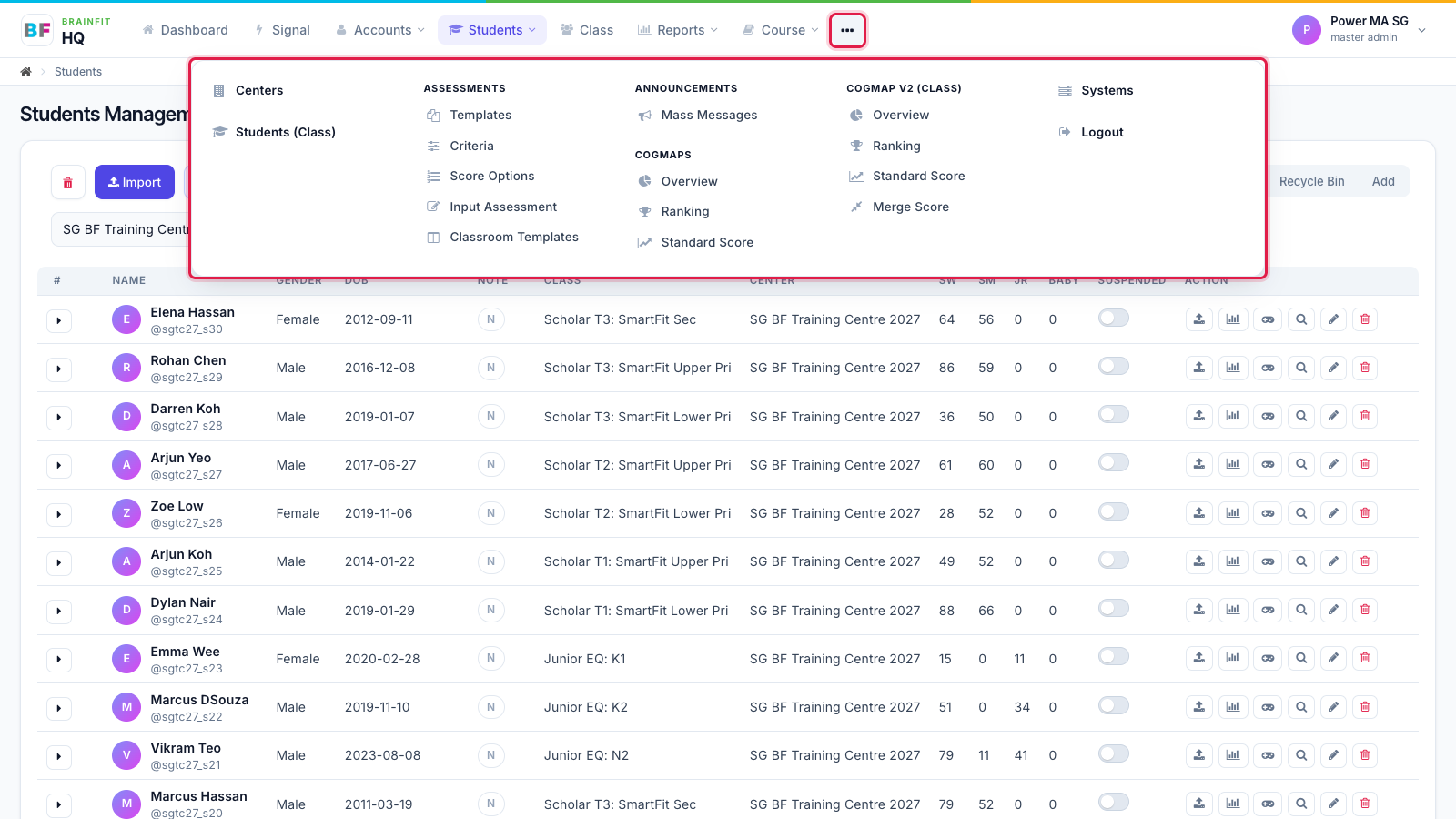
Everything else (Centers, Students (Class), Assessments, Announcements, CogMAP, Systems and more) is in the ⋯ menu at the end of the bar, grouped by area.
4. A new dashboard
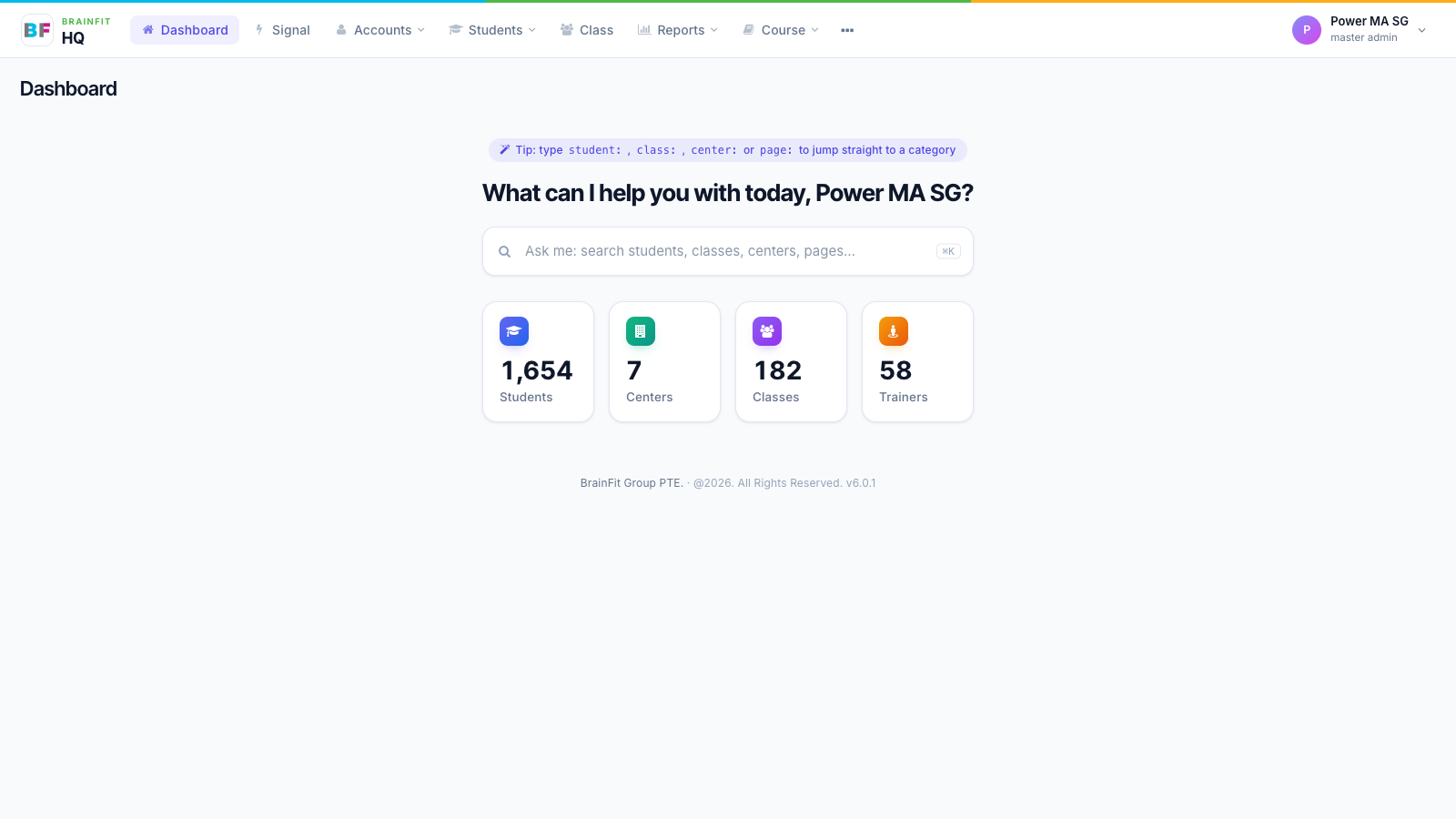
The dashboard starts with a search box: type a student, class or centre name and jump straight there (shortcut: ⌘K / Ctrl K). Below it are the numbers for the centres you look after.
5. Dark mode
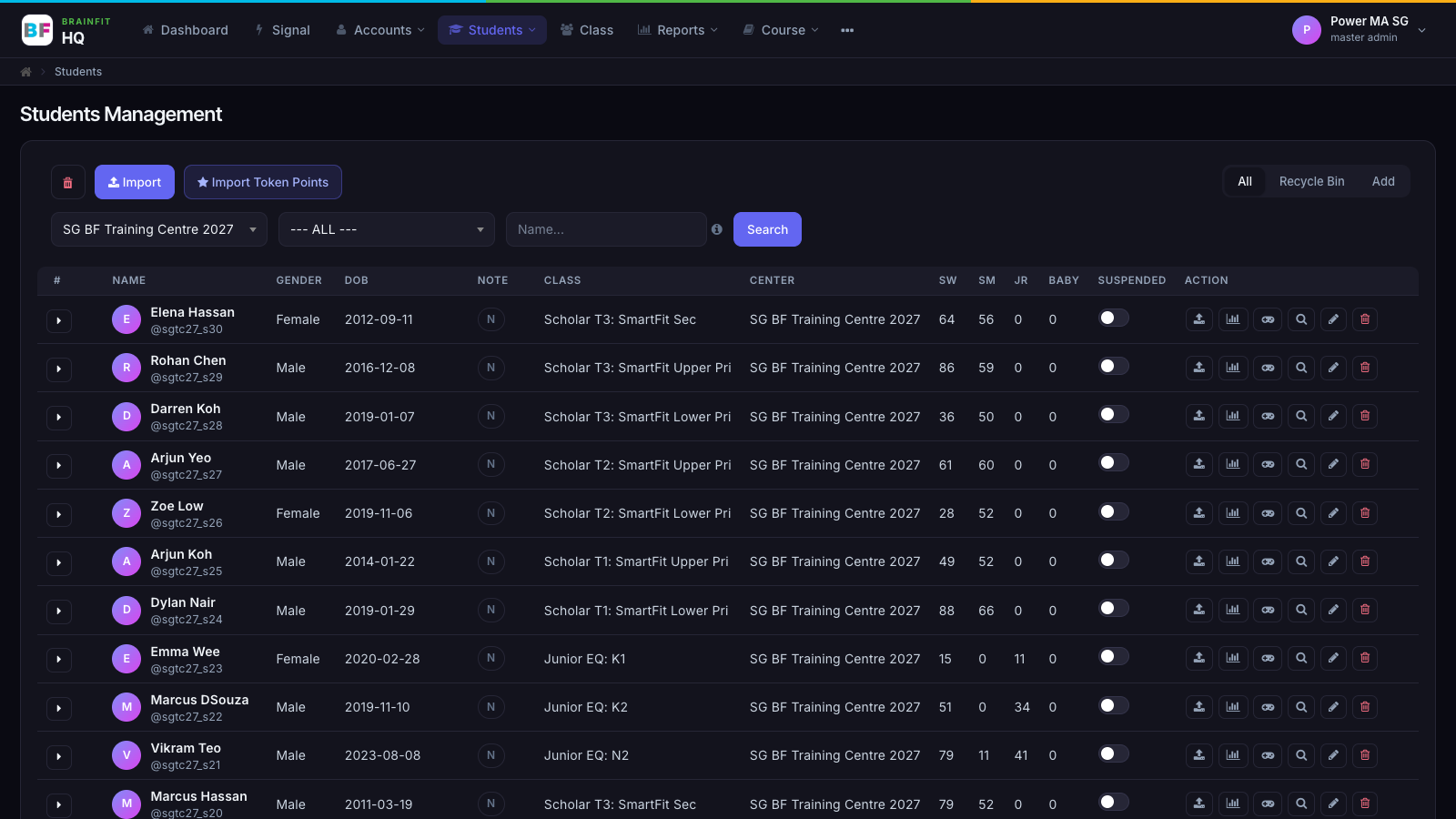
Guides
🗃️ Student Management
6 items
🗃️ Class Management
5 items
🗃️ Program Management
3 items
🗃️ CogMAP Management
6 items
🗃️ Course Management
5 items
📄️ Ask Brian
Brian is BrainFit's AI assistant inside Brain HQ. Ask him in plain words, such as "How is Minh doing this month?", and he answers from your Brain HQ data, with links to the real pages. Brian is being tried out with a small group first: Super Admin and the Master Admins of SG Group ML.
🗃️ Scheduling
5 items
🗃️ Teacher Tools
6 items
📄️ Training Centre
SG BF Training Centre 2027 is a practice centre full of pretend students, parents and coaches, so new staff can learn BrainFit (ACP, CoachSpace and Scheduling) without touching real families. It sits under the SG group (sggroupml), next to the real centres; the group's Master Admins see it straight away.
🗃️ CogMAP Assessor Notes
2 items
🗃️ CoachSpace
8 items
🗃️ Student Journey
2 items