Mass-assign Courses by Term
This feature is for SA, ML, CA, Trainer
Mass-assign lets you push one or more courses to many classes/centers at once, on a shared term schedule, instead of assigning course-by-course.
Step 1 — pick courses
- Navigate to HQ > LMS > Courses > Mass-assign by Term. Select one or more courses as tag chips.
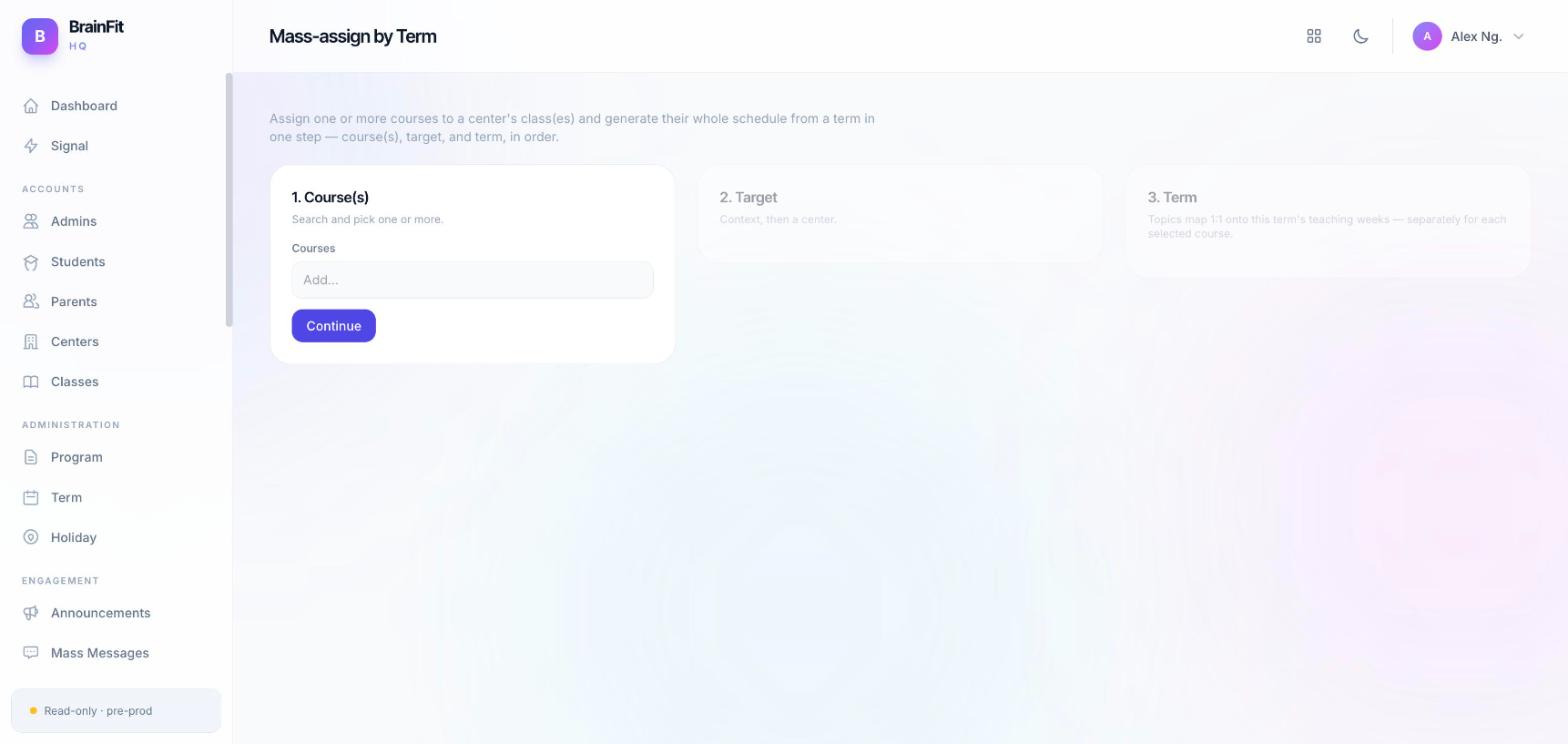
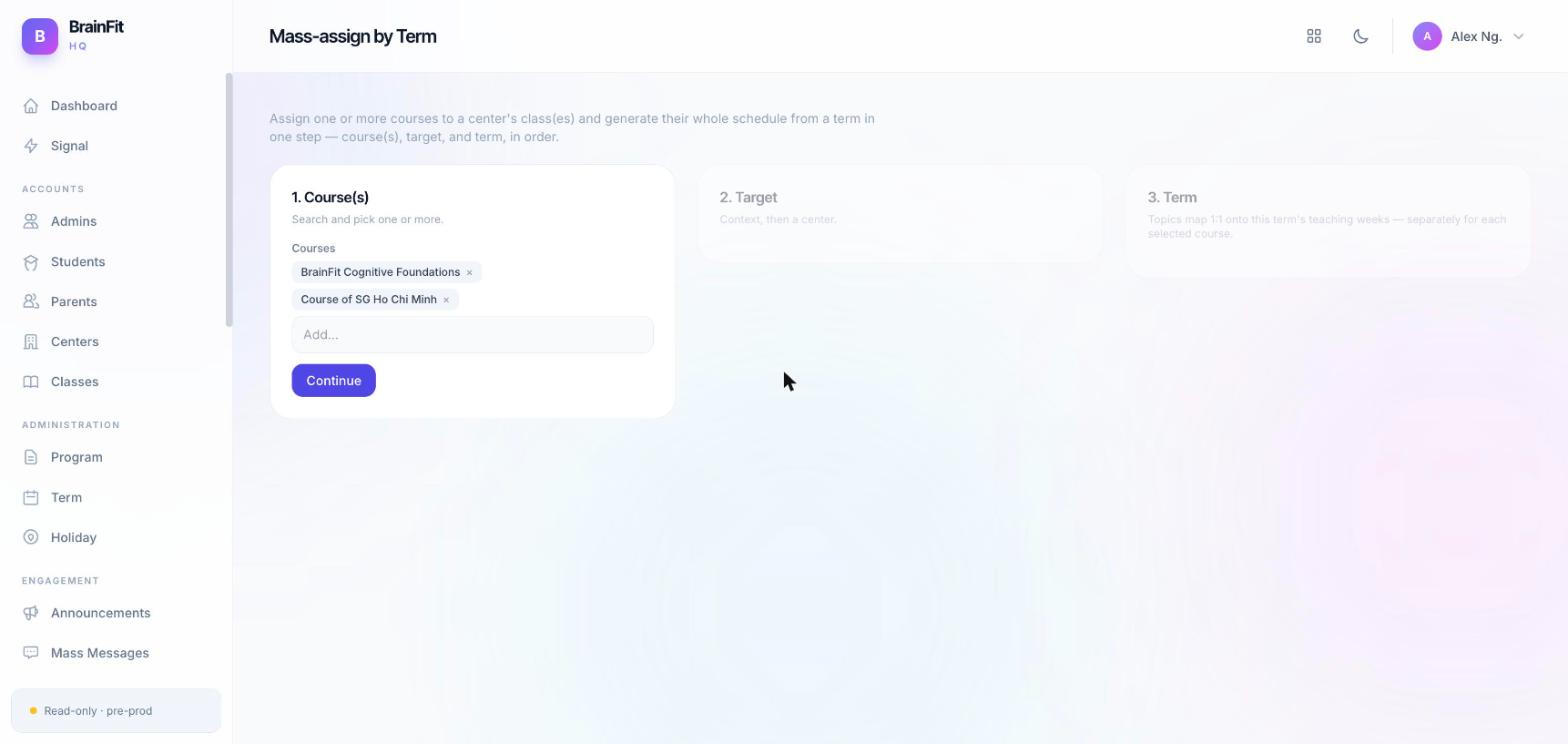
- Selected courses appear as chips; click Continue to move on.
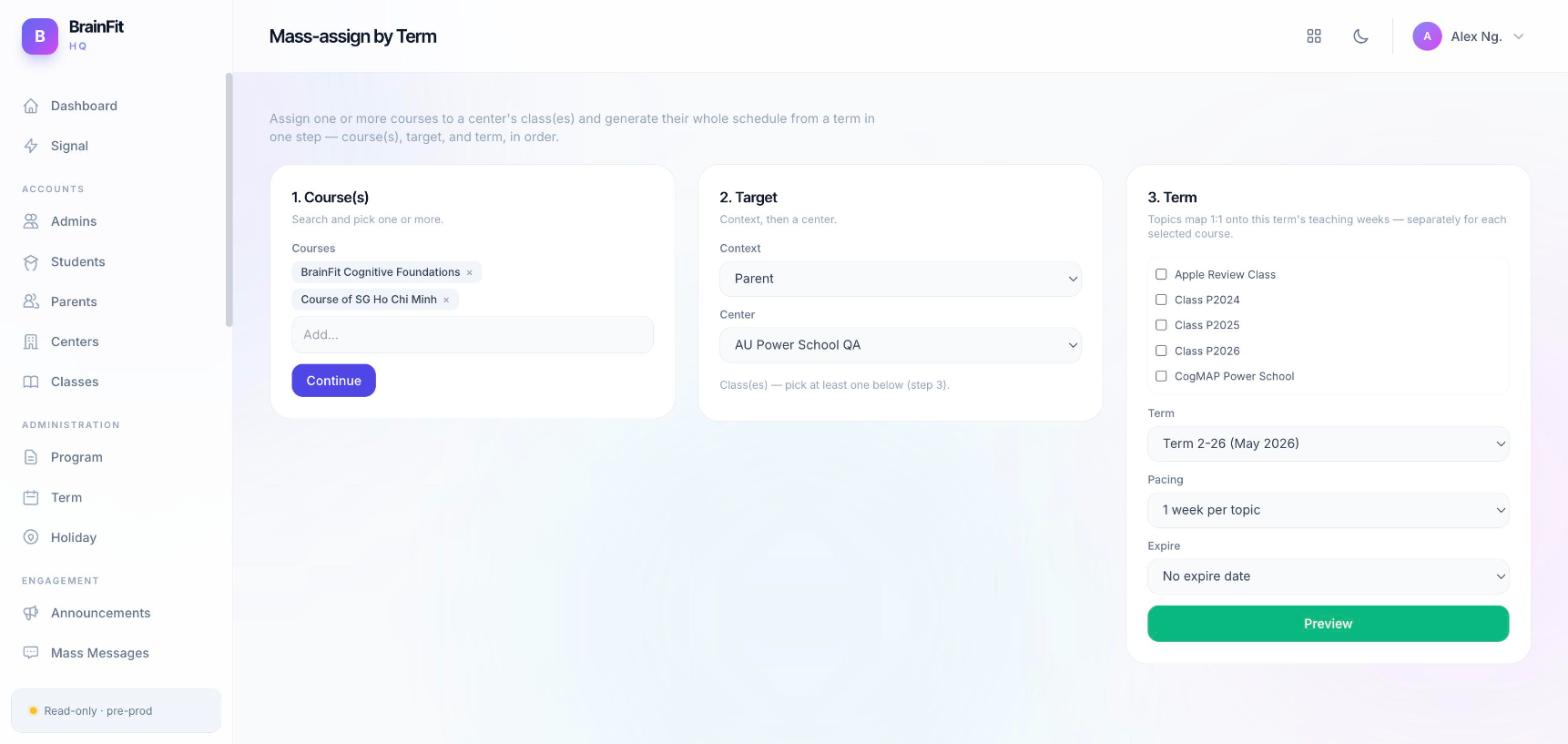
Step 2 — targets, term & pacing
- Choose the audience context (Trainer / Parent / Student), the target center and class(es), the Term, an optional expire date, and the Pacing (weeks per topic — same 1 / 2 / 5 options as single-course Assign).
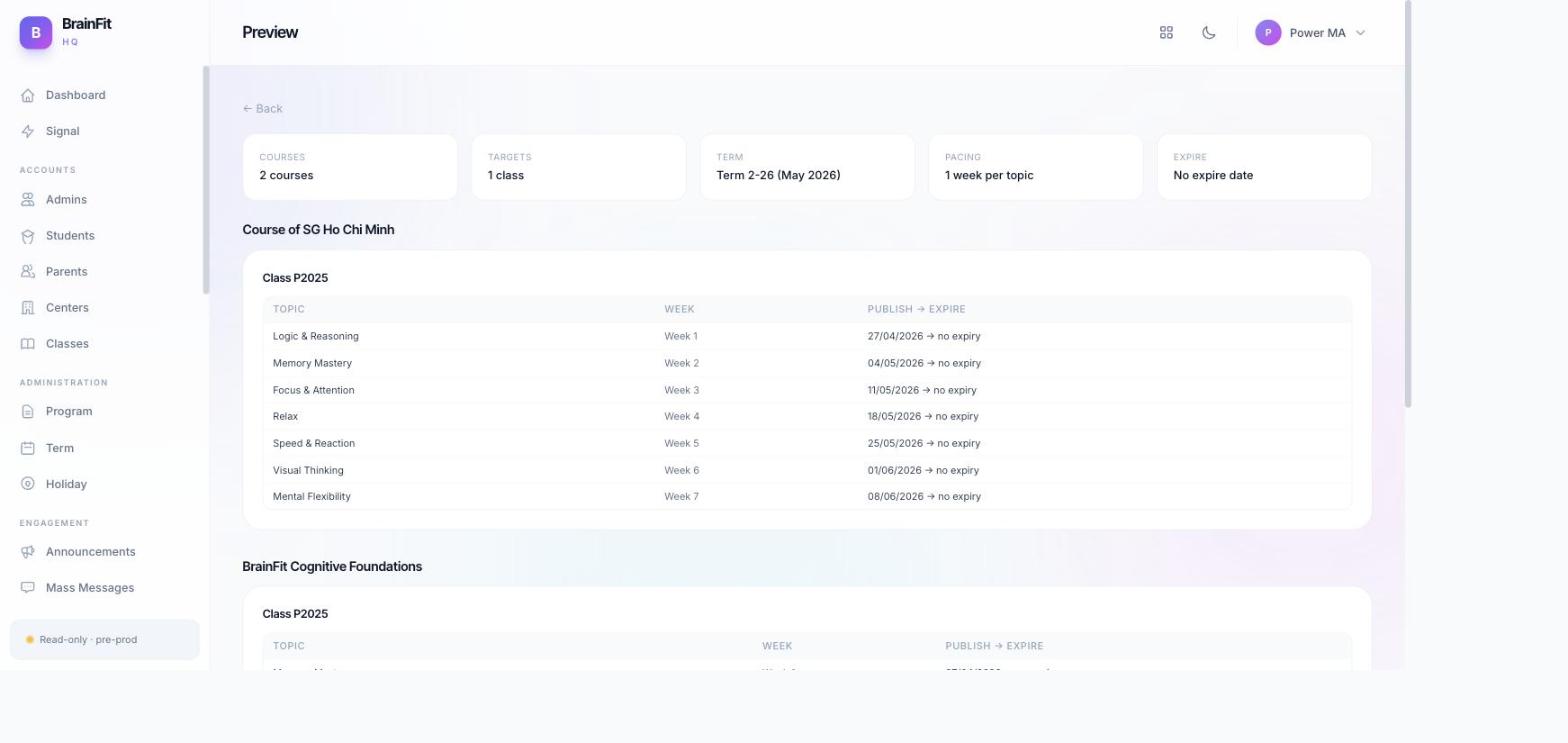
Step 3 — preview before confirming
- Click Preview to see a full dry run: stat tiles for Courses / Targets / Term / Pacing / Expire, followed by a per-course, per-class table showing exactly which topic lands in which week. Nothing is assigned yet at this point — review carefully, then use Confirm & Assign only once the preview looks correct.
Note:
- The Pacing control (1 / 2 / 5 weeks per topic) is shared logic with single-course Assign — see Assign a Course — so the preview math always matches what single-course Assign would generate for the same term and pacing.