Send Welcome Email to Parent
This guide explains how to send a welcome email to parents from BrainFit HQ (ACP). The welcome email provides parents with login credentials and access information for the PBC.
Required Roles
This feature is available for Super Admin (SA), Master Licensee (ML), Master Admin (MA), Center Admin (CA) and Trainer roles.
Overview
The welcome email feature allows you to:
- Send login credentials to parents
- Include specific children in the email
- Preview the email before sending
- Handle password updates for existing accounts
Step-by-Step Guide
Step 1: Navigate to Parents Section
- Log in to BrainFit HQ (ACP)
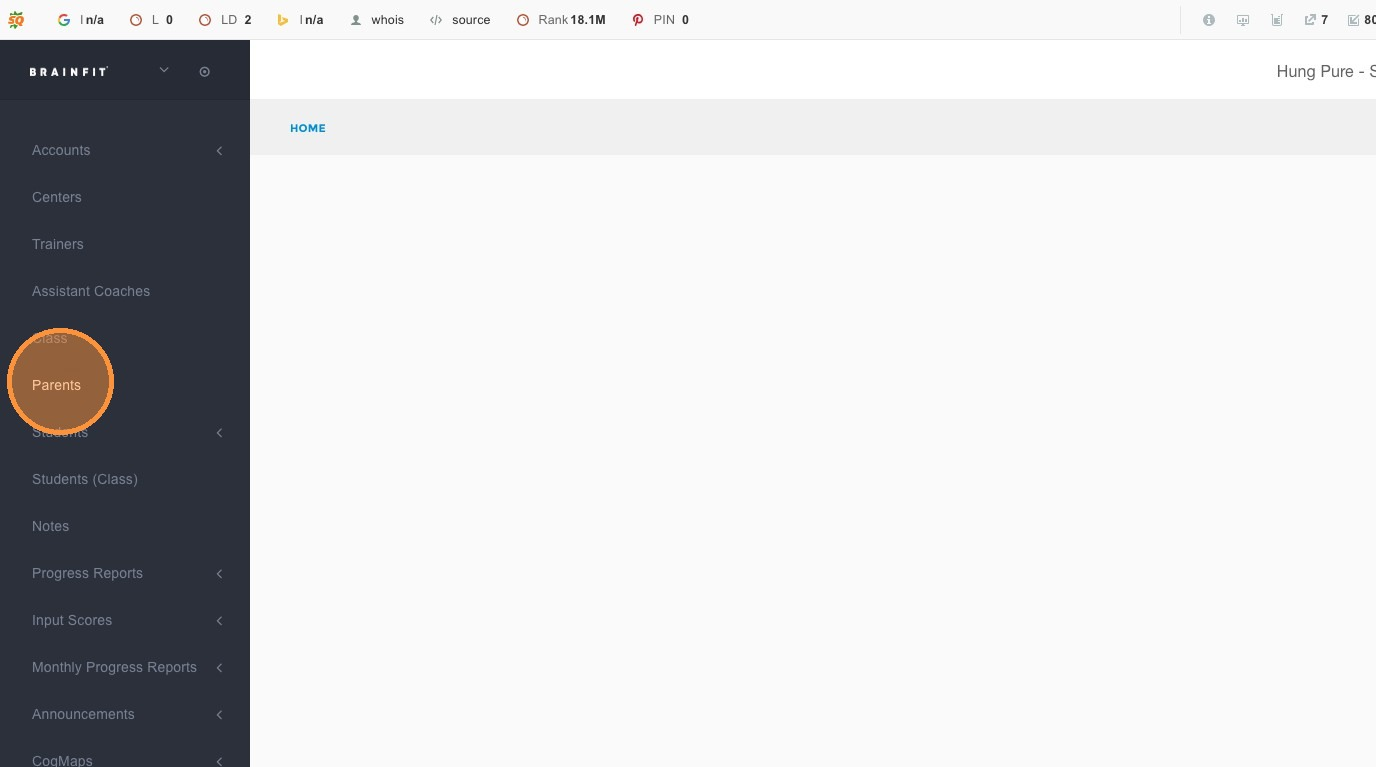
- Click Parents in the navigation menu
Step 2: Search for Parent
- Use the search function to find the parent you want to send the welcome email to
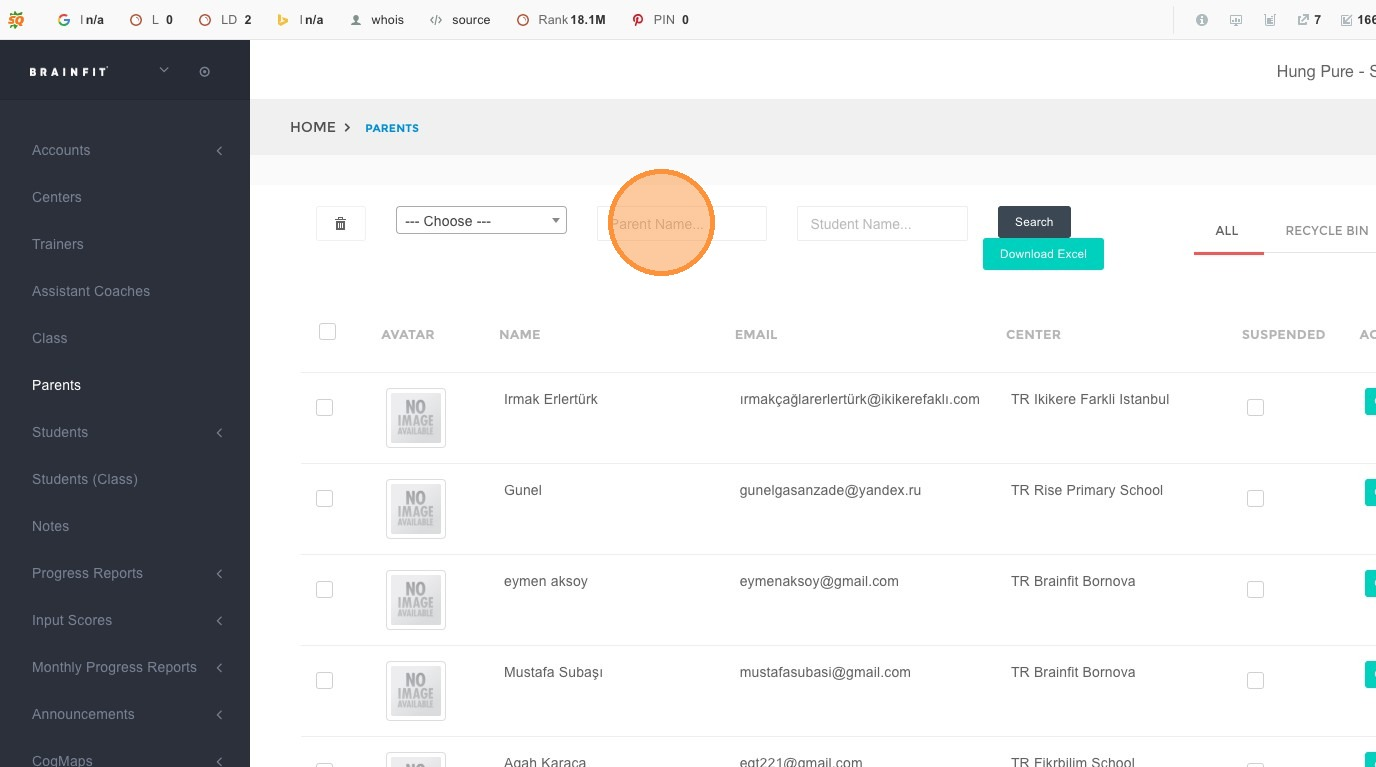
- Enter the parent's name, email, or other identifying information
Step 3: Access Parent Detail
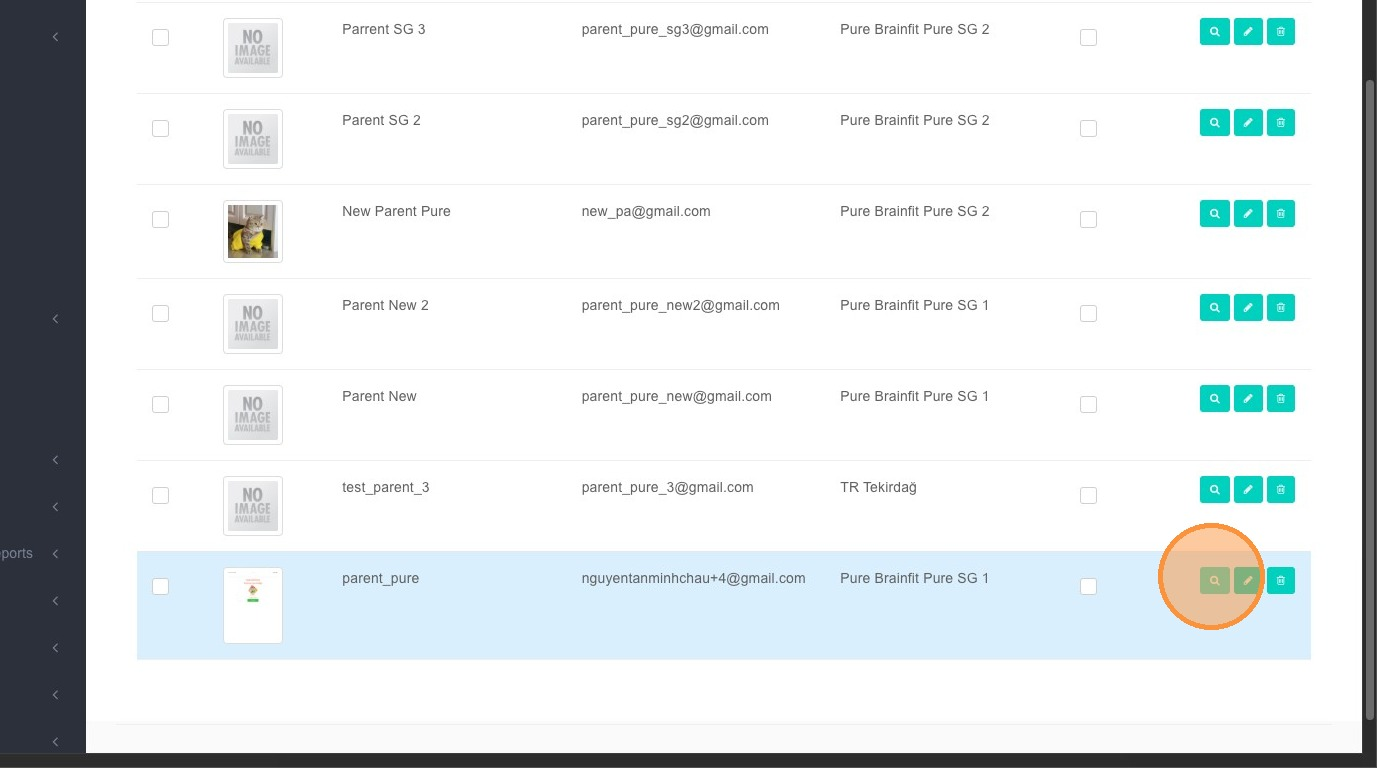
- Click the detail icon to access the parent's detail page
Step 4: Send Welcome Email
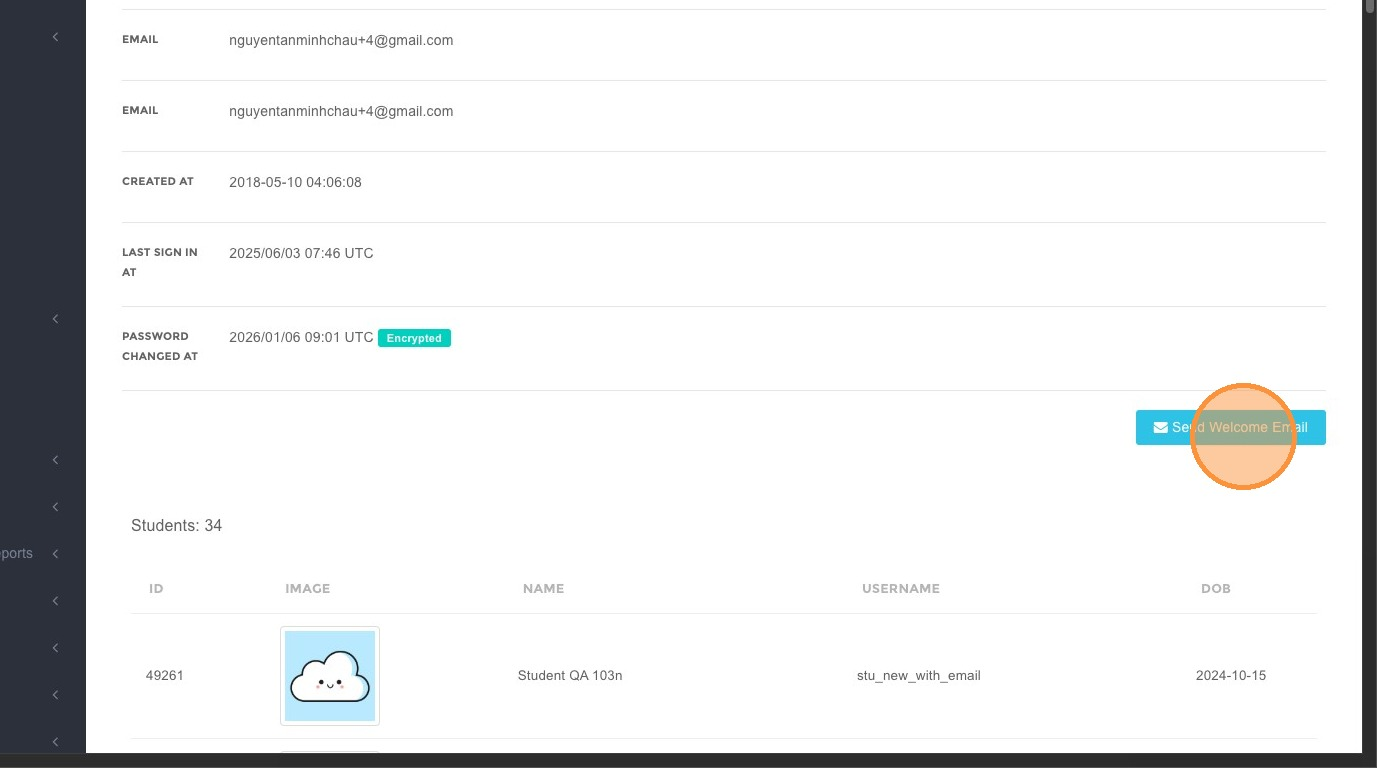
- On the parent detail page, click the Send Welcome Email button
Step 5: Select Students
- A modal will appear showing available children associated with this parent
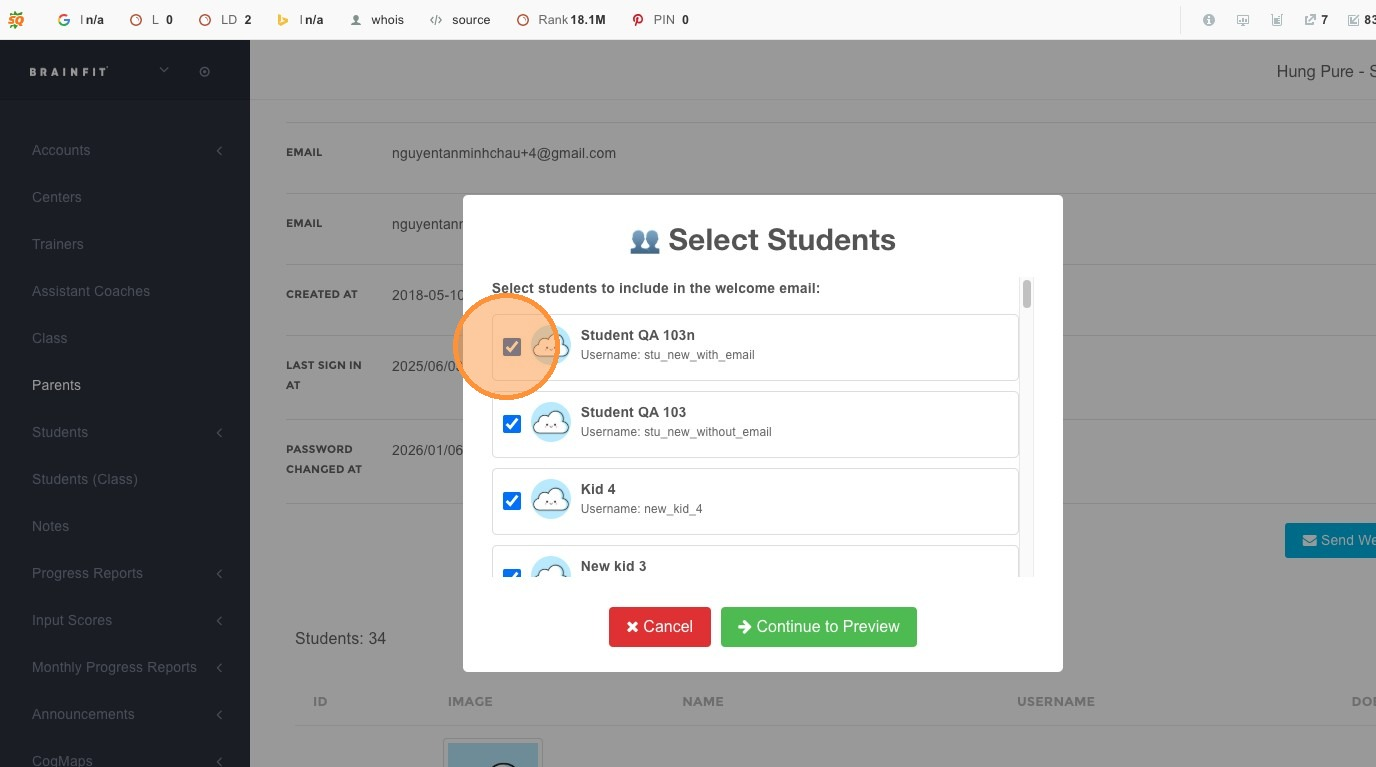
- Select Students you want to include in the welcome email
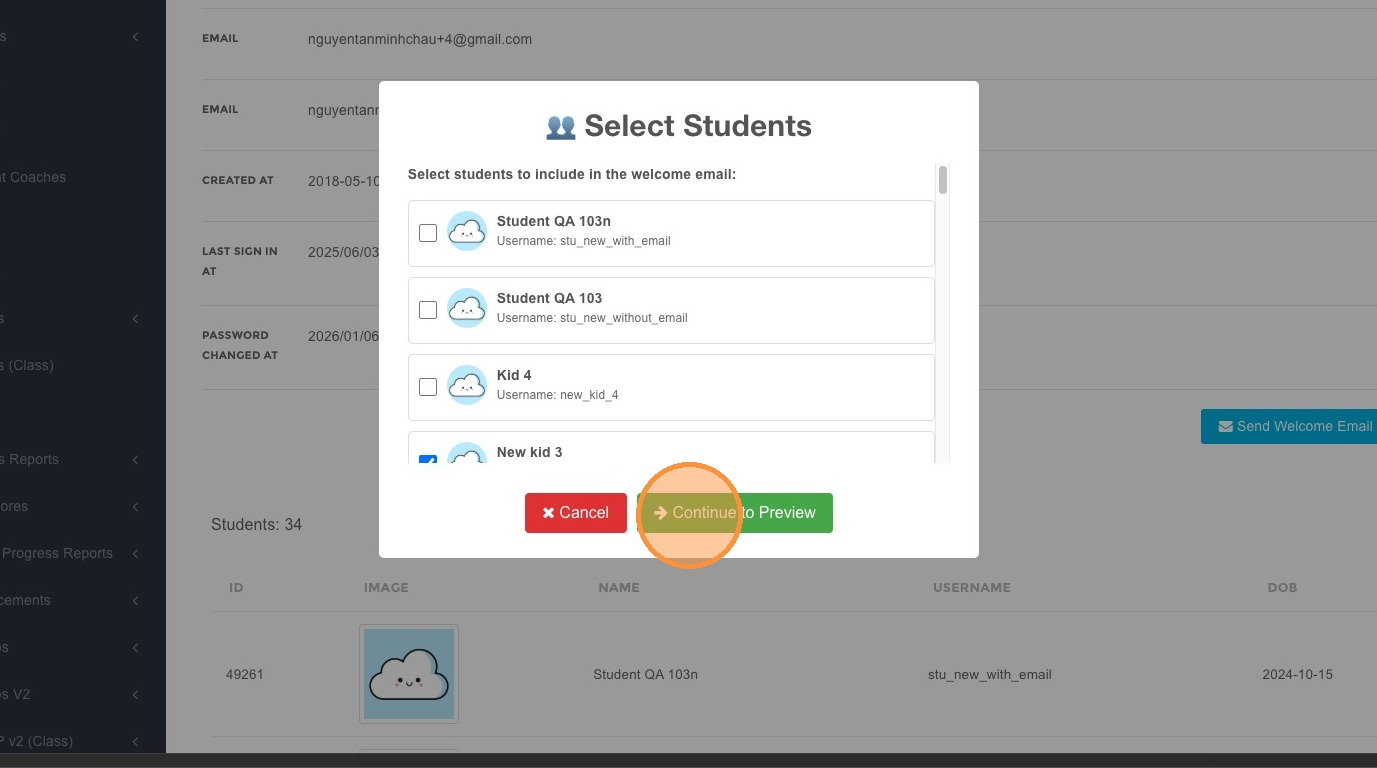
- You can select multiple children if needed
- Click Continue to Preview to next step
Step 6: Preview and Confirm
- A preview modal will appear showing the email content
- Review the email to ensure all information is correct
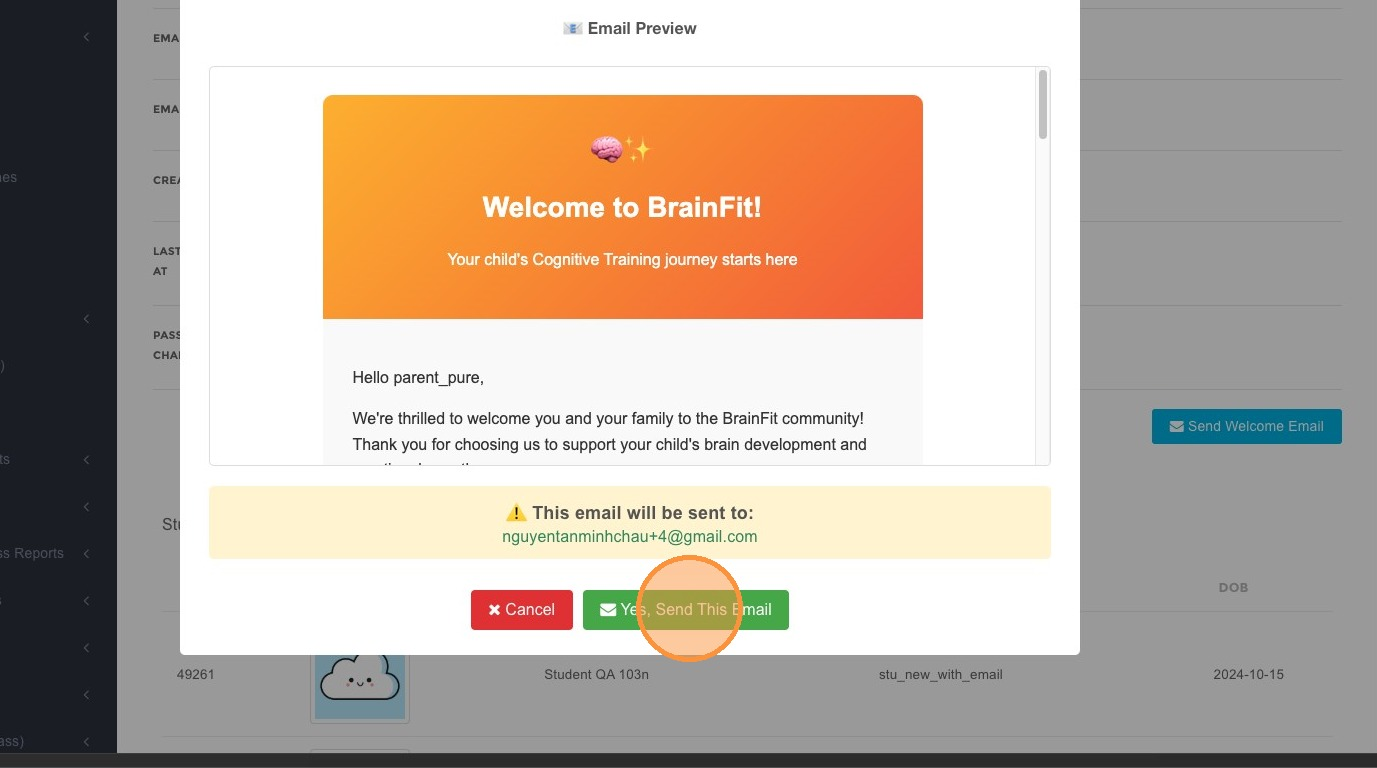
- Click Yes, Send This Email to confirm and send
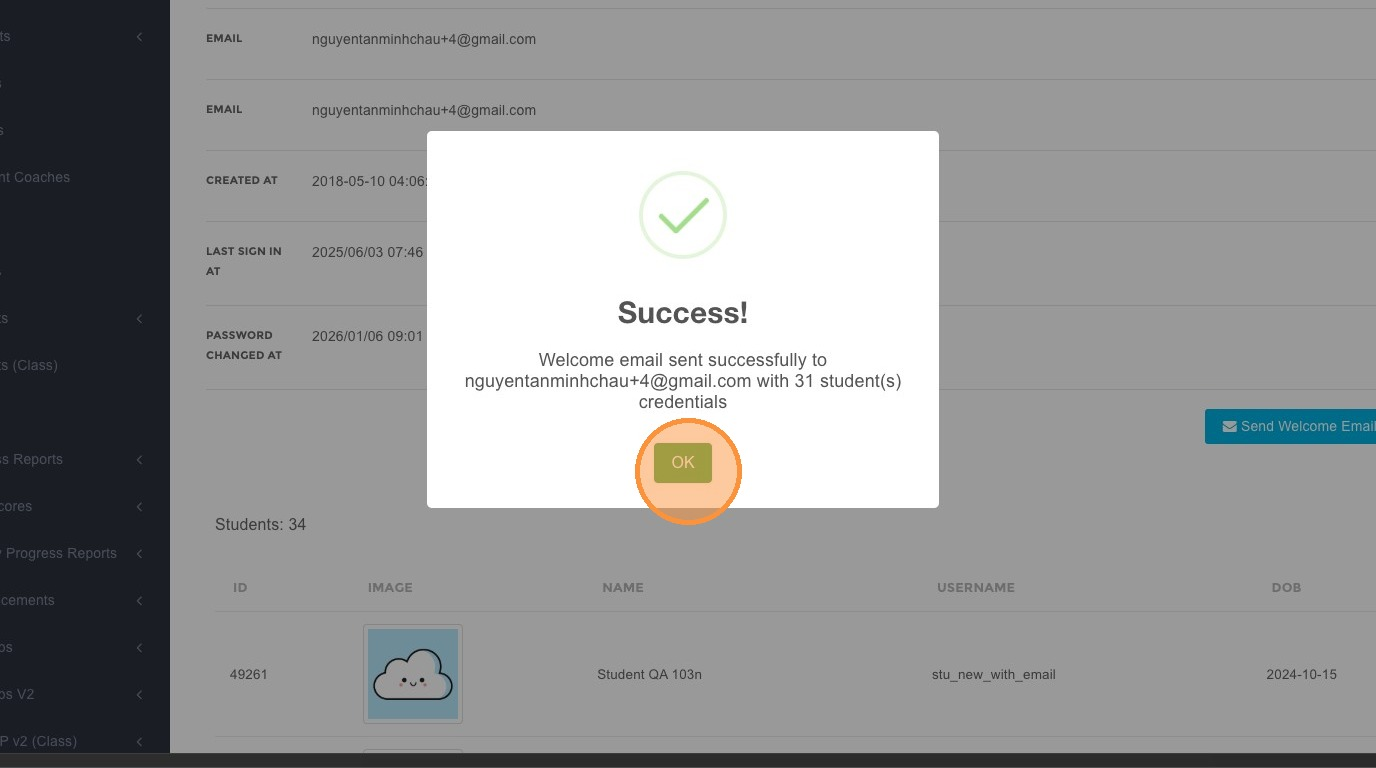
- Click OK to close the confirmation dialog
Important Notes
Password Update Requirement
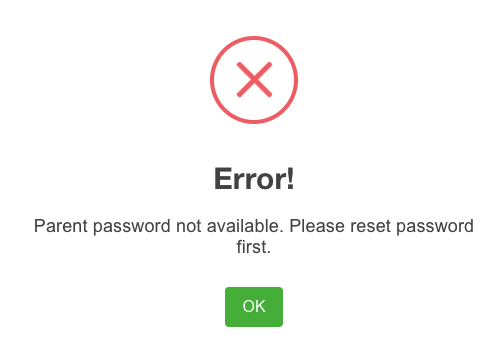
⚠️ Warning: For existing accounts with old passwords, a warning modal will appear after you "Select Students".
What to do:
- You must update the parent&student's password before sending the welcome email
- This ensures the parent receives valid login credentials and include student
- Update the password in the parent's account settings first, then proceed with sending the email