Get started and the Dashboard
CoachSpace is the trainer's workspace. It shows only your own students and classes, and it opens on the Dashboard.
Watch (about 1½ minutes):
Good to know: the pictures and the video in this guide use a practice centre (SG BF Training Centre 2027) with pretend students. You only ever see the students of your own classes.
1. Sign in
Open CoachSpace in your browser and sign in with your trainer username and password. You land on the Dashboard, which greets you by name.
2. Use the menu
The menu across the top takes you to Signal, Students, Courses, Calendar, Tasks, Notes and P.Meeting (Progress Meetings). Click the logo at any time to return to the Dashboard.
3. Search
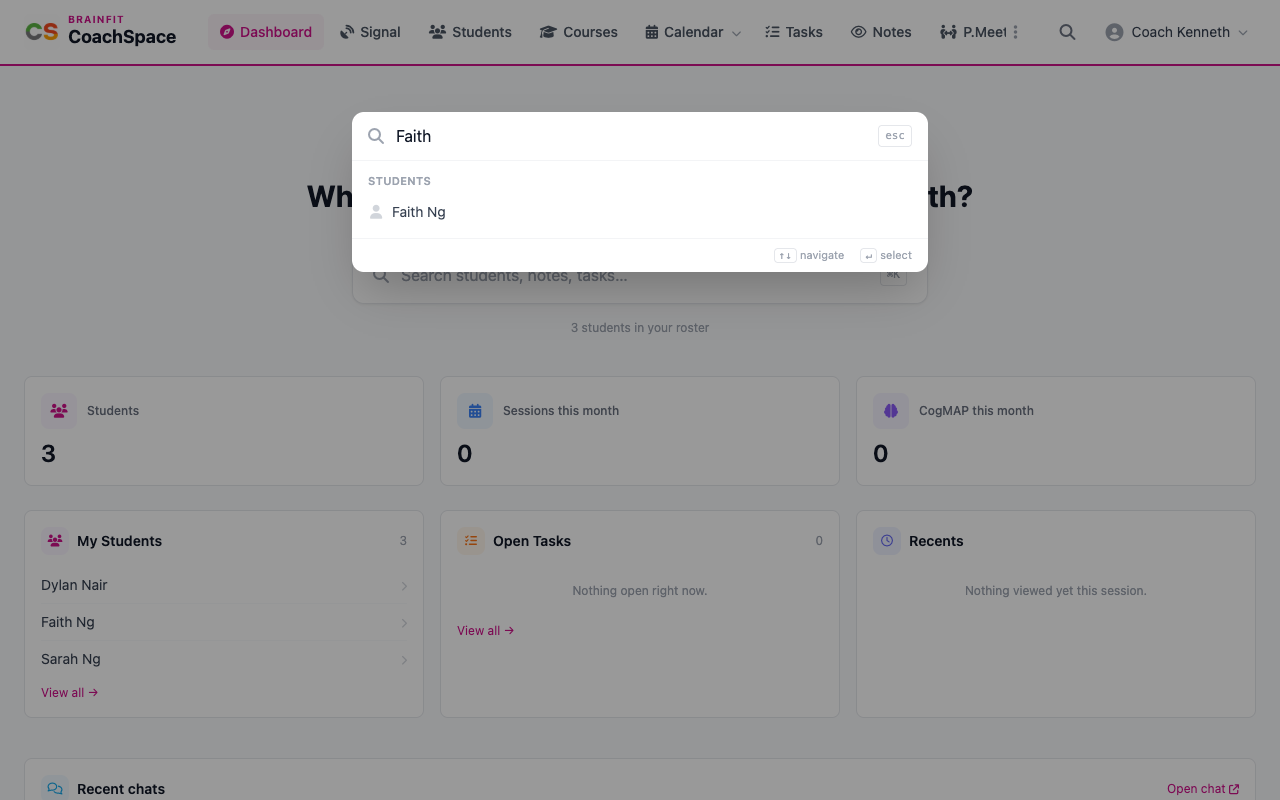
Click the search box (or press the / key) and start typing. Students, notes and tasks that match appear as you type. Start with student:, note: or task: to search only that category.
4. Read the cards
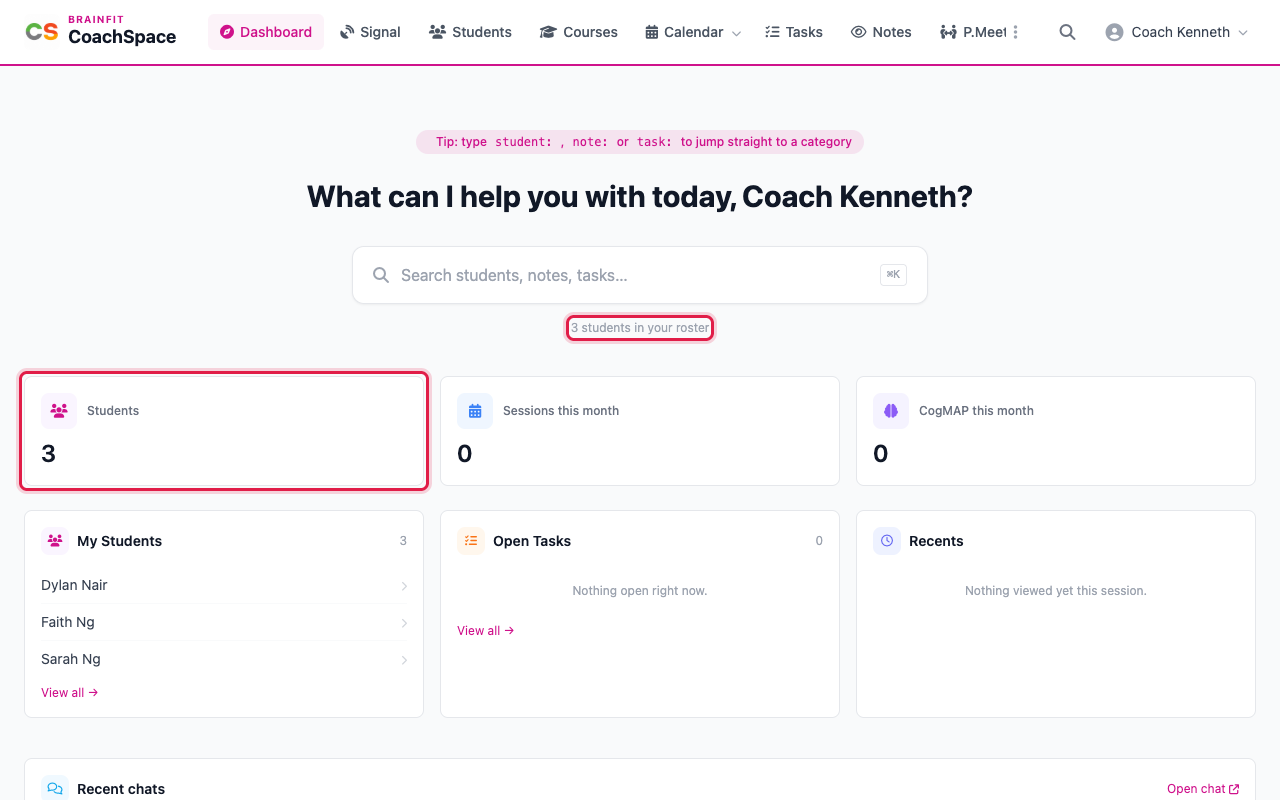
Three cards count what is on your plate: the Students in your roster, the Sessions this month you run, and the CogMAP this month sessions. Below them:
- My Students lists your roster. Click a name to open that student.
- Open Tasks shows what you still have to do.
- Recents remembers the students you opened in this visit.
- A month calendar marks the days with sessions, with Open full calendar underneath.
5. More tools
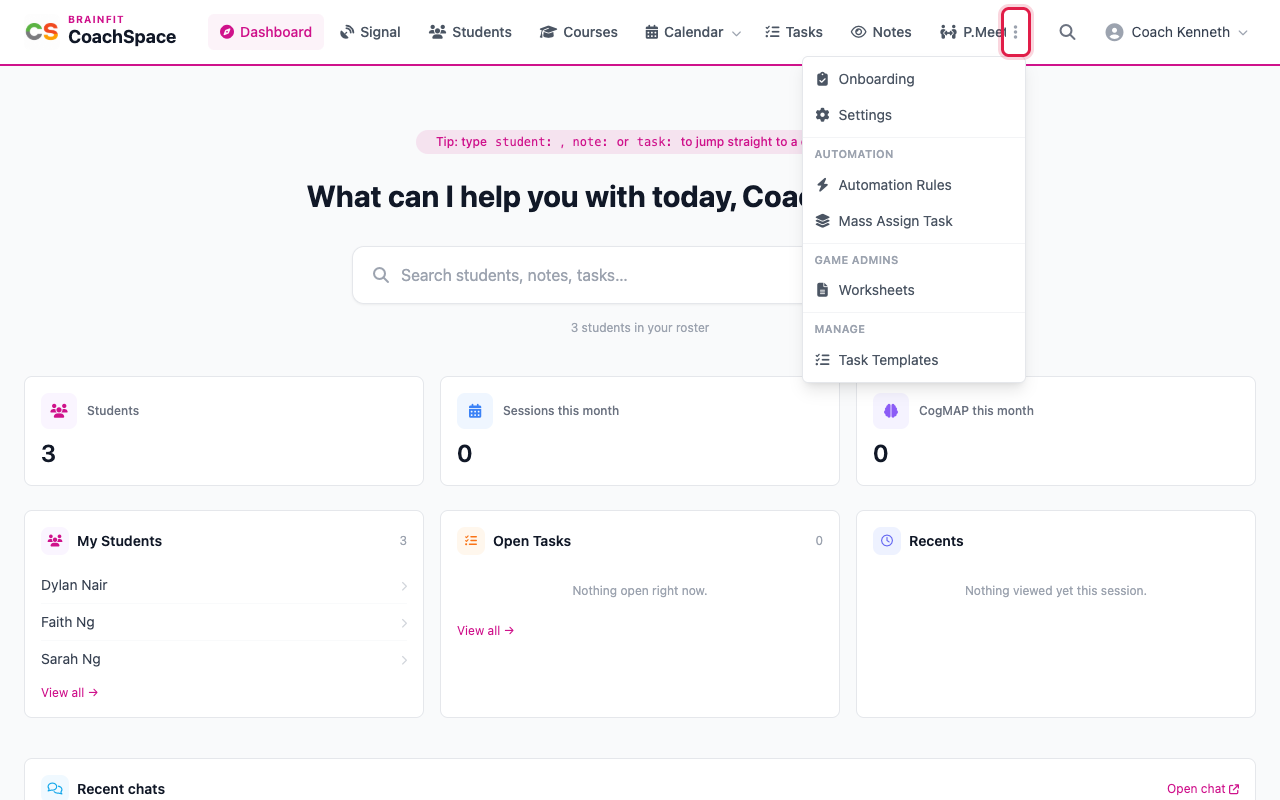
The three dots at the end of the menu open Onboarding, Settings, Mass Assign Task, Worksheets and Task Templates. Your name opens the account menu, where you sign out.