How to Download and Upload Schedules of a Course
This feature is for SA, ML, CA, Trainer
Steps to Download the Schedule
- Navigate to ACP Portal.
- Click "Course".
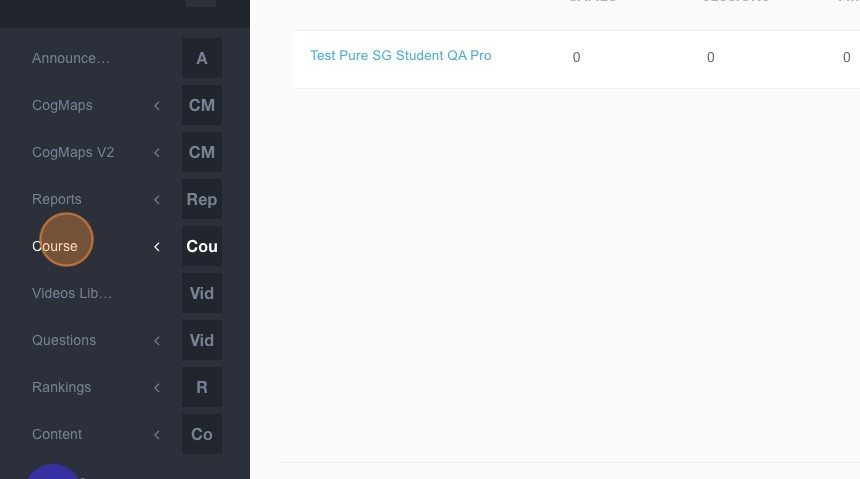
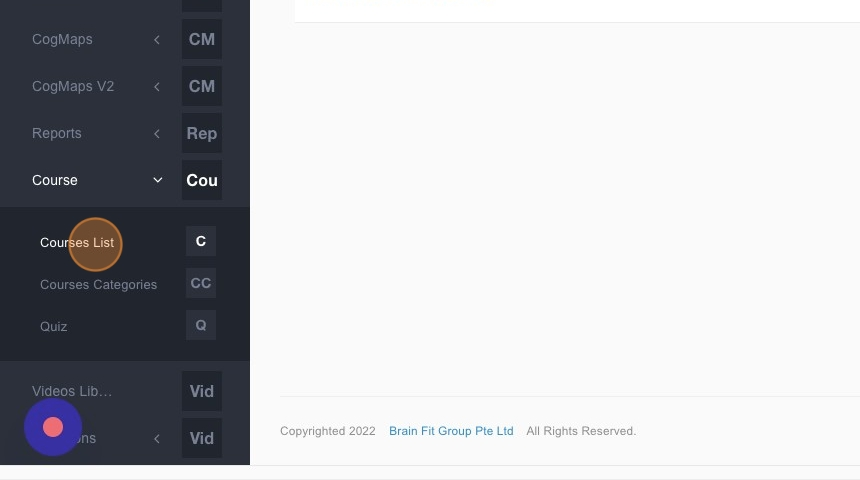
- Click "Courses List".
- Click the "Course title" field.
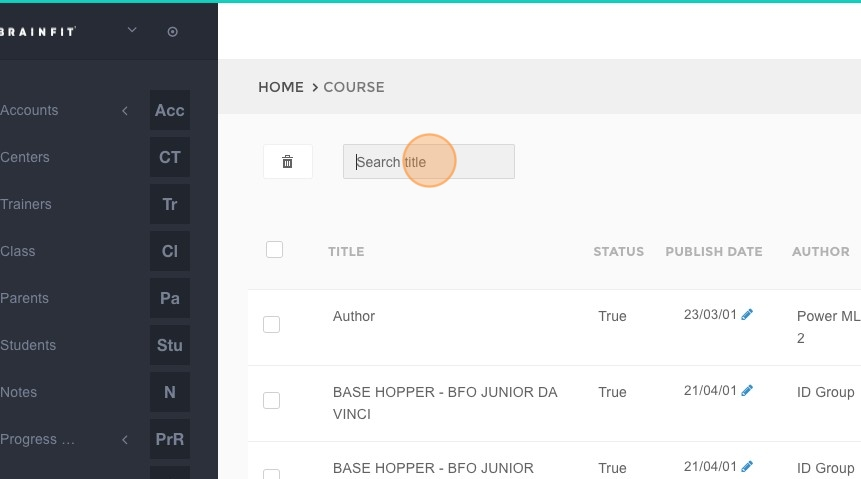
- Type the Course's name and press Enter.
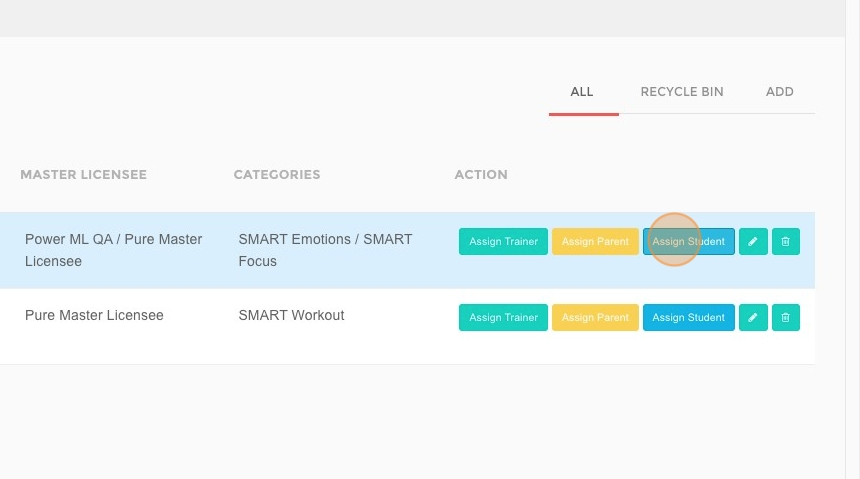
- Click "Assign Student".
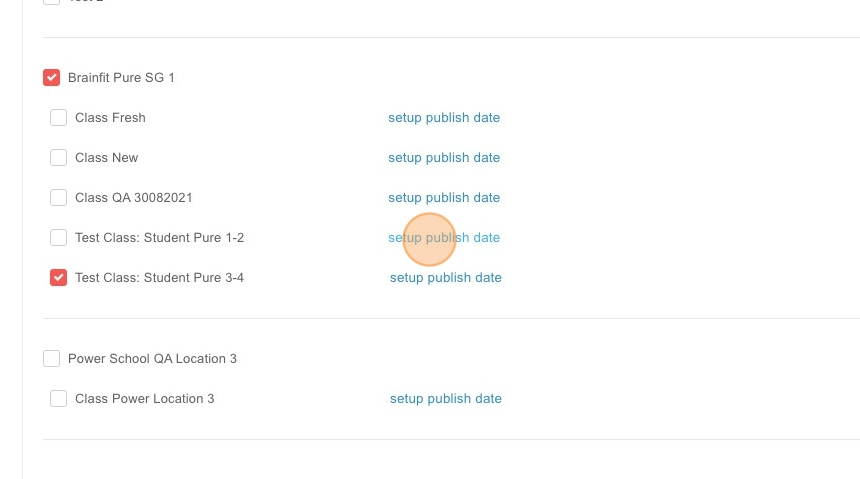
- Click "Setup publish date".
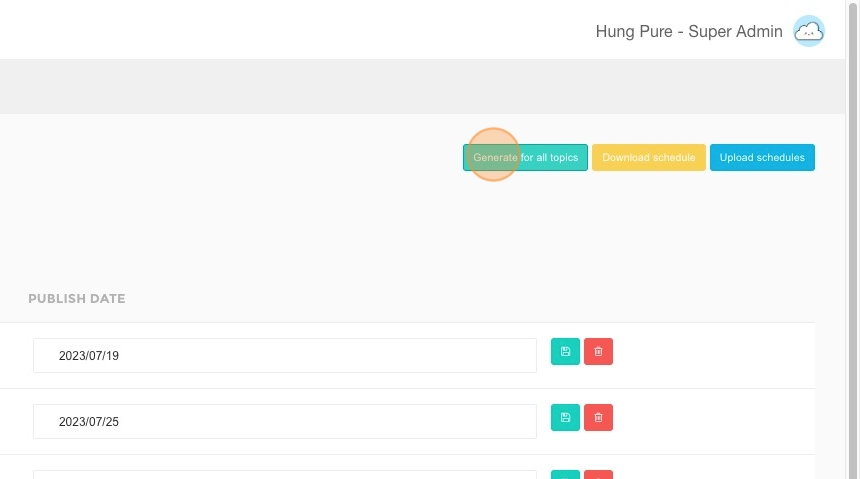
- Click "Generate for all topics".
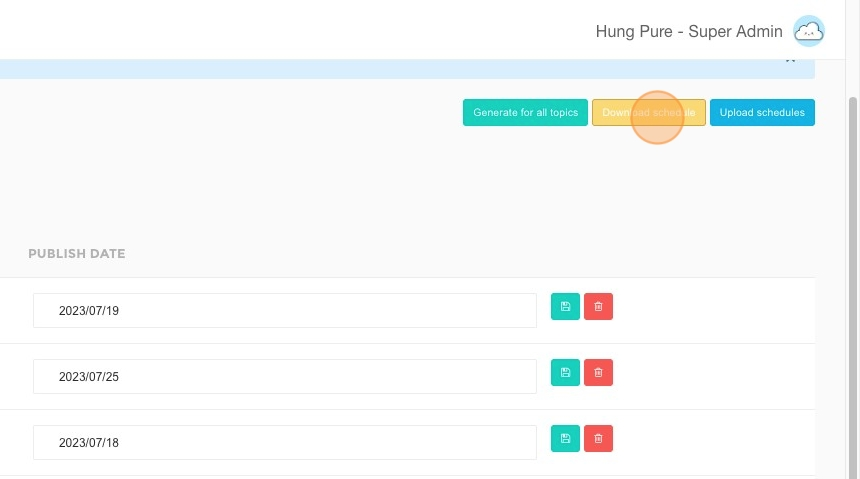
- Click "Download schedule".
Steps to Upload the Schedule
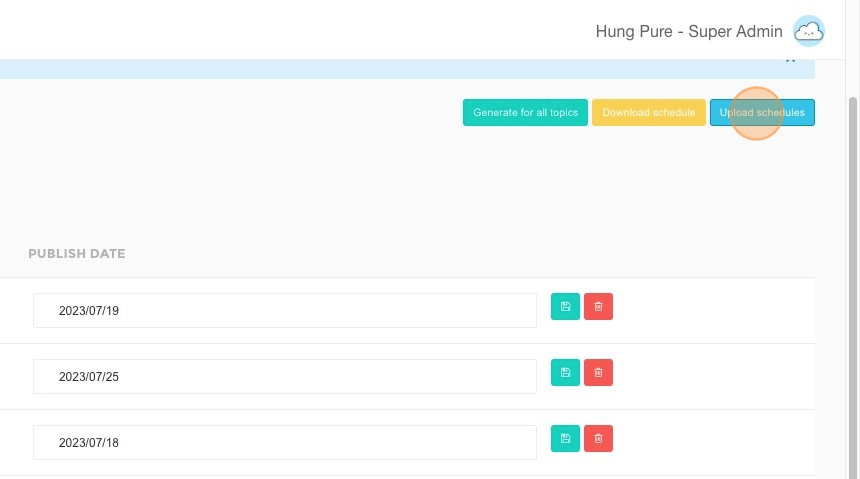
- Click "Upload schedules".
- Ensure the number of topics matches the correct topic ID, which was included when downloading the Excel file in Step 8.
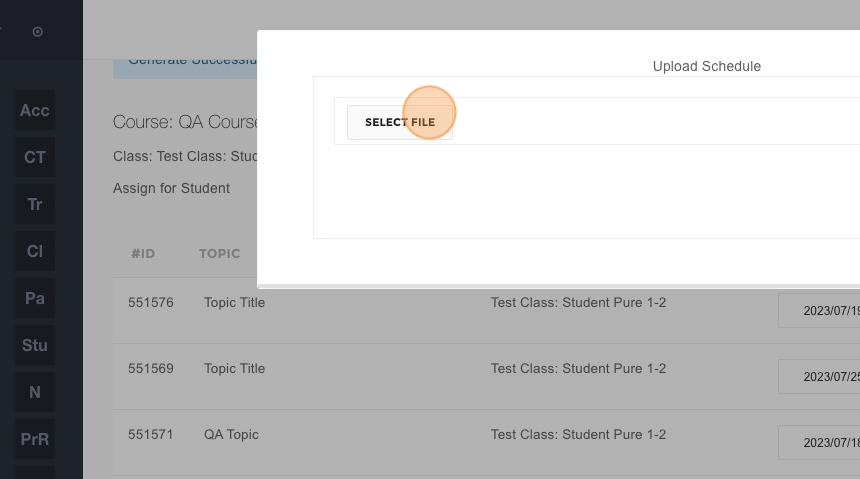
- Click "SELECT FILE" and choose the file.
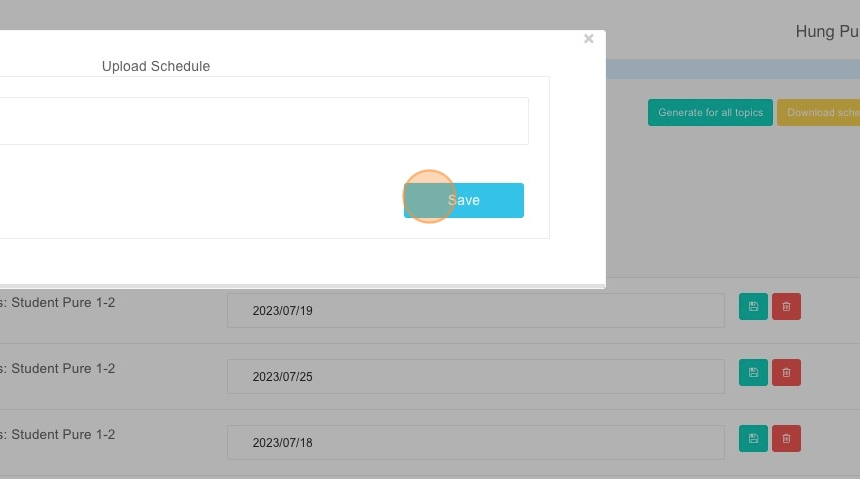
- Click "Save".
Note:
- Ensure the PUBLISH DATE column is formatted correctly:
- Date format:
yyyy/mm/dd - Text format:
"Text"
- Date format: