Adding a Class to a Program (and How It Affects Students)
This feature is for SA, ML, Master Admin, Center Admin
Attaching a Class to a Program is what actually puts students into that Program — there's no separate step where you individually enroll every student in a class. This page explains exactly what happens when you do this, since it's not obvious from the screen alone.
Adding a Class
- Navigate to the ACP → Program, and open the Program you want to add a class to.
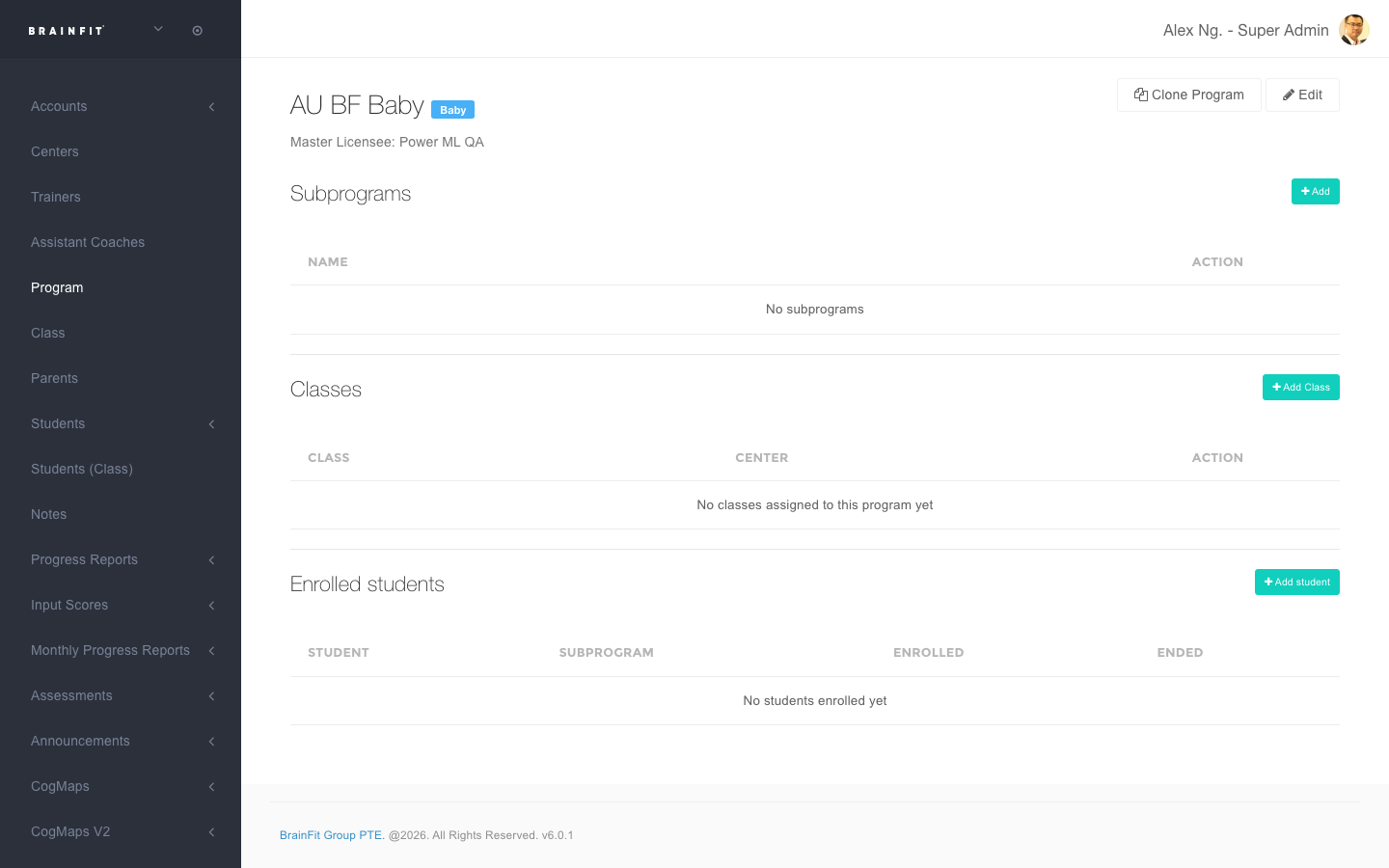
- In the Classes section, click Add Class.
- A window opens — search for or choose the class, then click Next.
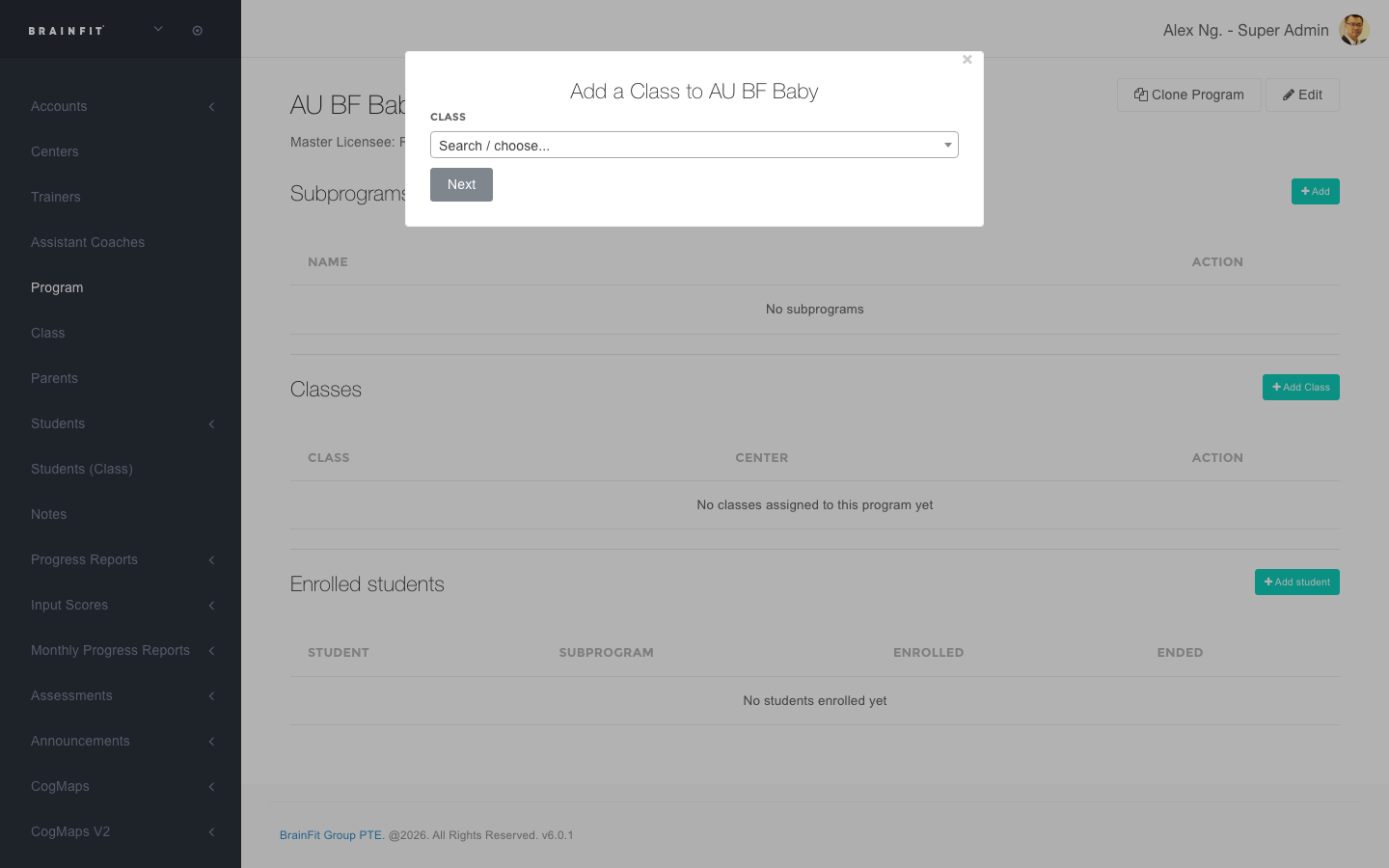
- Once added, the class appears in the Classes table, and its students appear in Enrolled students automatically (see below for exactly how).
To remove a class later, use the remove action next to it in the Classes table.
What happens automatically when you add a class
- Every student currently in that class is enrolled in the Program immediately — enrolled date is set to the day you added the class. You don't need to add students one by one.
- No Subprogram is set automatically — enrollments from adding a class always land with no Subprogram. If you need students in a specific Subprogram, that has to be set per-student separately (Super Admin only — see the note below).
- If a student is already actively enrolled in that Program (e.g. from a previous class), they're not double-enrolled — adding the class again is safe.
This keeps working after the class is added — not just a one-time action
Moving a student to a different class automatically updates their Program enrollment too, at any time after the class was first attached — not just when you click "Add Class":
- If a student is moved into a class that belongs to a Program, they're enrolled in that Program right then, the same way as above.
- If a student is moved out of a class that belongs to a Program, their enrollment in that Program is ended (dated that day) — unless they're still in another class that's also attached to the same Program, in which case nothing changes.
So once a class is attached to a Program, you can manage it going forward just by moving students between classes as usual — Program enrollment follows along on its own.
Removing a class from a Program
Its students' enrollments in that Program are ended (not deleted — the enrollment record stays, just marked with an end date), again unless a student is still in another class also attached to that same Program.
A class can belong to more than one Program
A single class isn't limited to one Program — if you attach the same class to two different Programs, its students get enrolled in both. Likewise, one student can be actively enrolled in several different Programs at the same time (just never two active enrollments in the same Program at once).
Where to see a student's Program enrollment
There's currently no Program information shown on a student's own profile page, and no link to it from anywhere in the student's normal pages. The only place enrollment history (Program, Subprogram, enrolled/ ended dates) is listed per-student is a Super Admin-only screen — if you're ML/MA/CA, you can attach classes and see who's enrolled from the Program's own page (as above), but not from the student's side.