Managing Programs
This feature is for SA, ML, Master Admin, Center Admin
What is a Program?
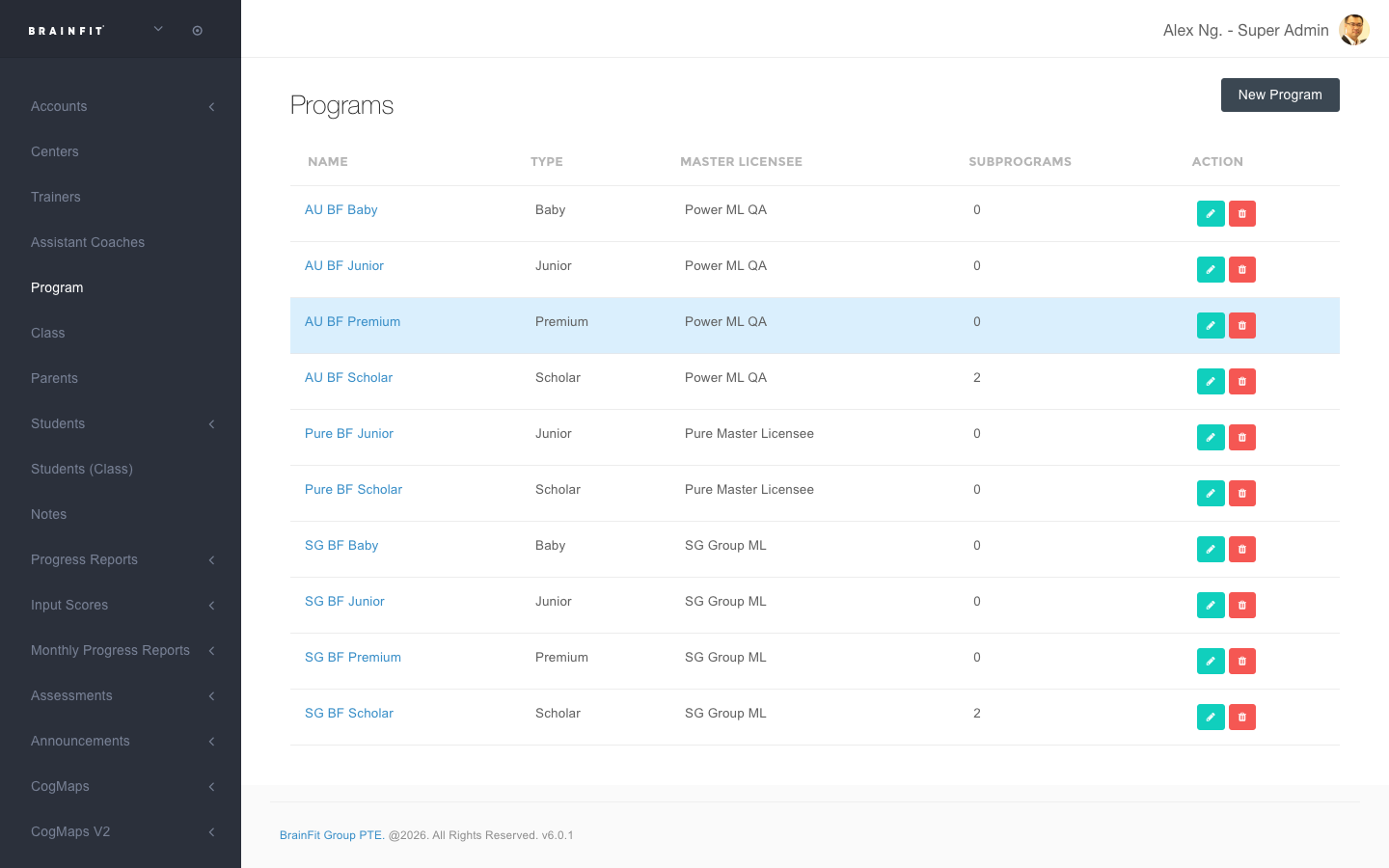
A Program is how a Master Licensee organizes their offering — for example "AU BF Junior" or "SG BF Scholar". Each Program belongs to exactly one Master Licensee, and has a Type (a fixed category: Junior, Scholar, Baby, or Premium) used for cross-center reporting regardless of what the Program is actually named.
Programs are used to:
- Track which students/classes are enrolled in which Program.
- Get attached to Assessment Templates, which controls the branded header ("BrainFit Junior", "BrainFit Scholar", etc.) on printed Assessment Report Card PDFs — see Assessment Print-Out and the note in Managing Assessment Templates.
Each Master Licensee (and their Master Admin / Center Admin) only ever sees and manages their own Programs — never another Master Licensee's.
Viewing your Programs
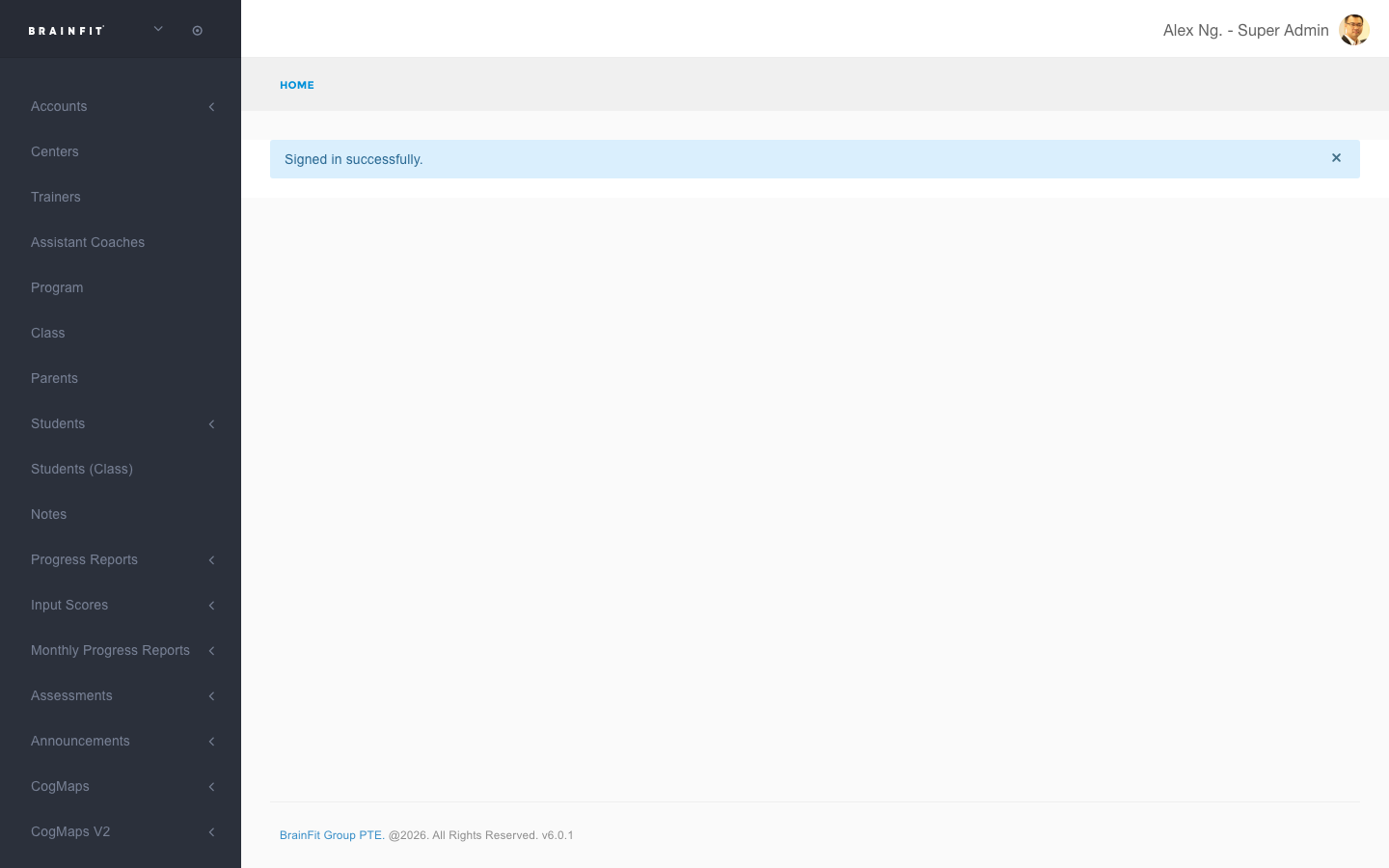
- Navigate to the ACP.
- Find Program in the navigation menu (a standalone item, not nested under anything else).
- You'll see a table of all Programs you have access to, with their Type, Master Licensee, and Subprograms count.
Creating a New Program
- From the Programs list, click New Program.
- Fill in the following fields:
- Name: A display name for the Program (e.g. "SG BF Scholar").
- Master Licensee: Which Master Licensee this Program belongs to. If you're a Master Licensee, Master Admin, or Center Admin, this is locked to your own organization — you won't see other MLs here.
- Type: One of Junior, Scholar, Baby, or Premium — the canonical category used for
cross-center reporting, and what actually appears on printed Assessment Report Card PDFs (as
"BrainFit
Type"), separately from the Name above. - Description: Optional free text.
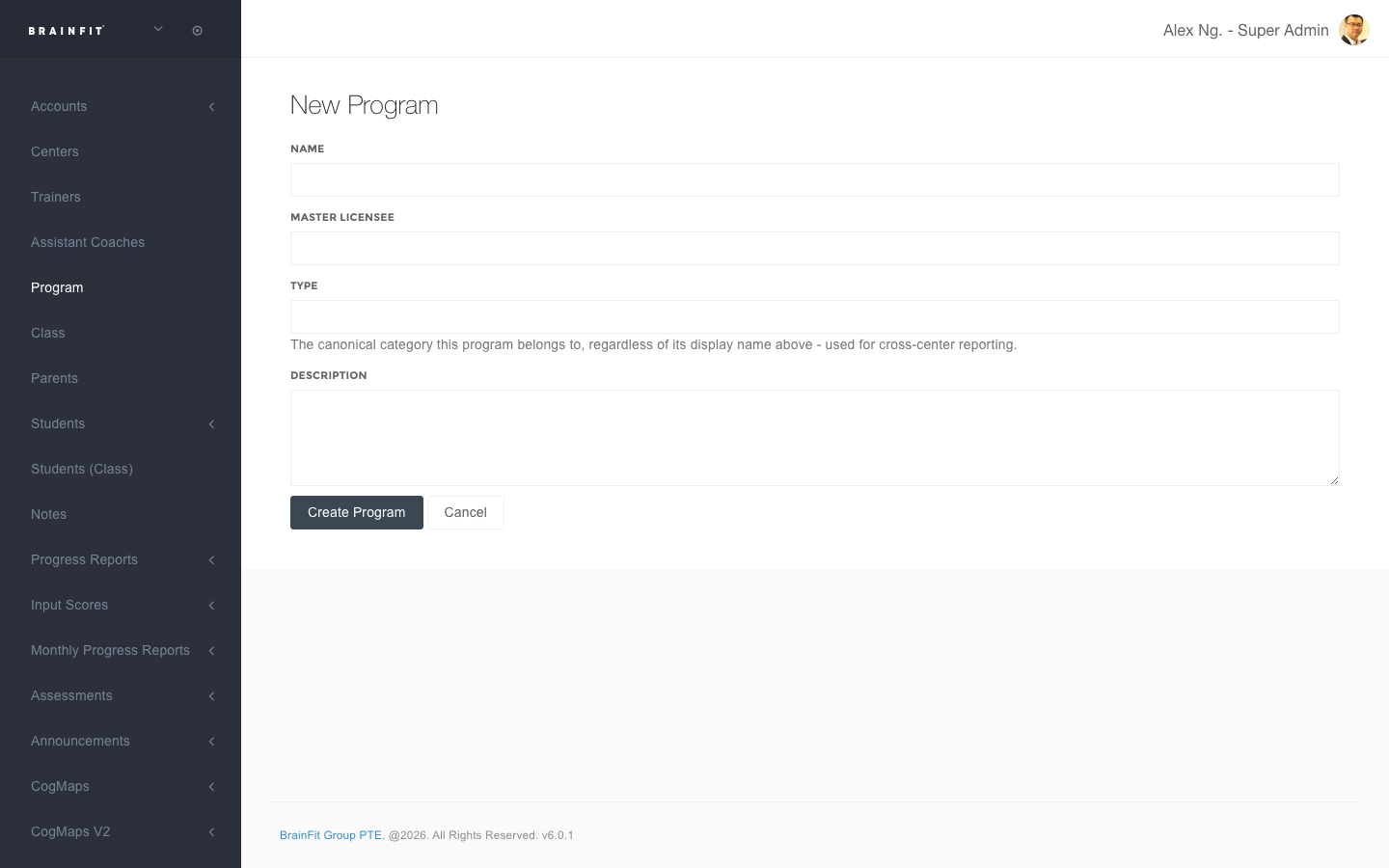
- Click Create Program.
Viewing / Editing a Program
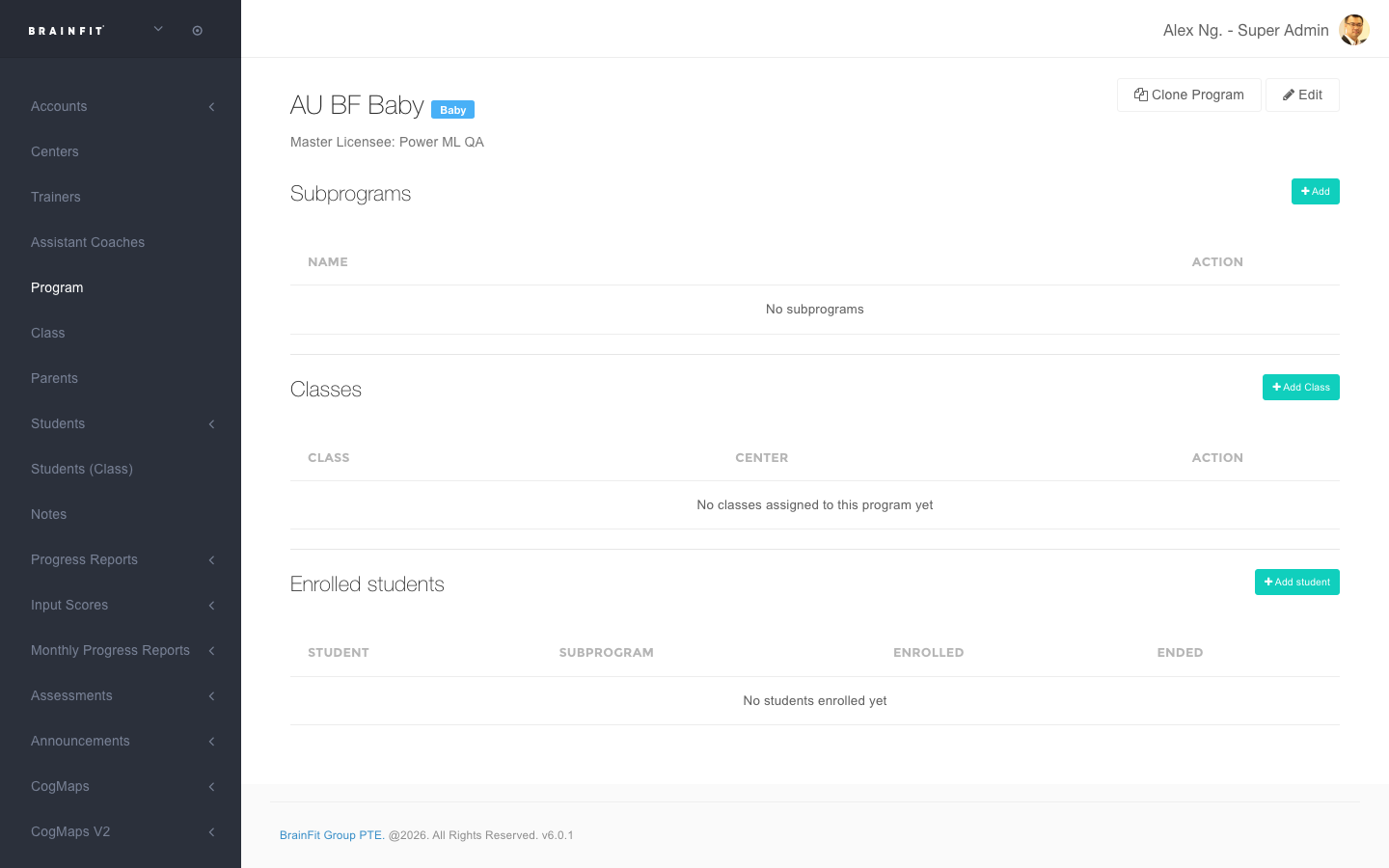
Click a Program's name from the list to open its detail page. From here you can:
- Edit the Program's Name, Master Licensee, Type, or Description.
- Clone Program — copies this Program (and its Subprograms) to a different Master Licensee, so a new ML running the same kind of program (e.g. another "Scholar") gets their own separate record instead of sharing this one. Super Admin only — this action explicitly reassigns to a different ML, so it's not self-service for ML/MA/CA.
- Manage Subprograms, Classes attached to the Program, and Enrolled students — adding a class here automatically enrolls its students in the Program. See Adding a Class to a Program for exactly what this does and how it keeps working afterward as students move between classes.
Relationship to Assessment Templates
A Program is manually attached to an Assessment Template (there's no automatic matching by name, and no bulk backfill) — see Managing Assessment Templates for how to set the Program field on a template. Once a template has a Program assigned, its printed report cards show that Program's Type in the header instead of the generic default — see Assessment Print-Out.