How to Download and Print Assessment Report Cards
Downloading Assessment Report Cards
This feature is for SA, ML, CA, Trainer
The Teacher Tool (tt.brainfitstudio.com) can generate a branded PDF report card for a student's assessment progress. You can download report cards for a whole class at once, or for a single student from their assessment page.
Download for a whole class
- Navigate to Teacher Tool → Assessment Tracker and select a class.
- In the top-right corner of the class page you'll see two icons: a print icon and a PDF icon.

- Print icon (Print All Students) — one click, no extra steps. It selects every student in the class automatically and starts the download straight away, in batches (see below).
- PDF icon (Download Assessment Report Card) — opens a window listing every student in the class
with a checkbox, if you want to print only some of them. All students are selected by default.
- Use Select All / Deselect All, or tap individual checkboxes to choose specific students.
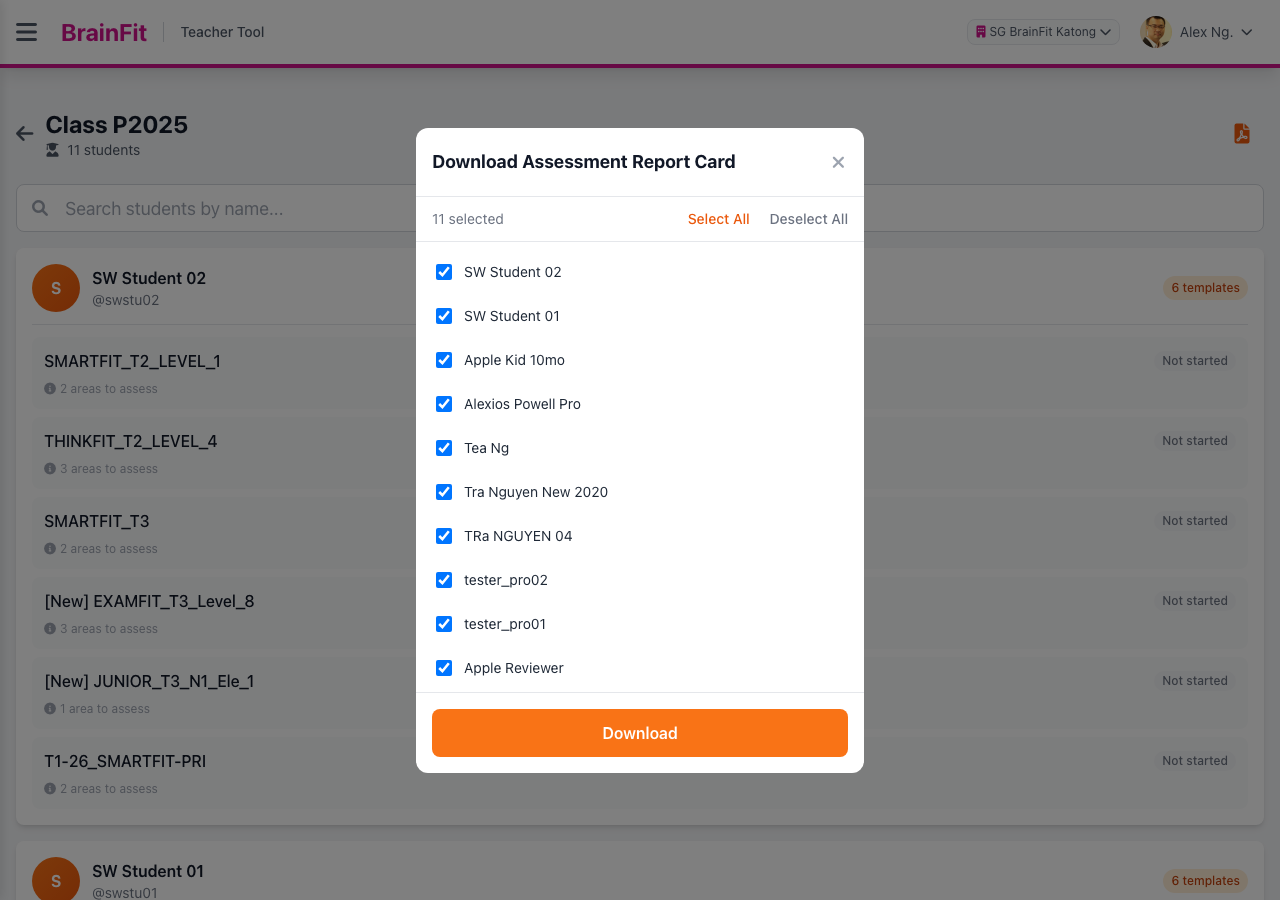
- Click Download. The window shows "Preparing Assessment Report Card..." while the report is generated. For larger classes this now shows "Preparing batch X of Y (N students)..." — see Batched downloads for large classes below for why.
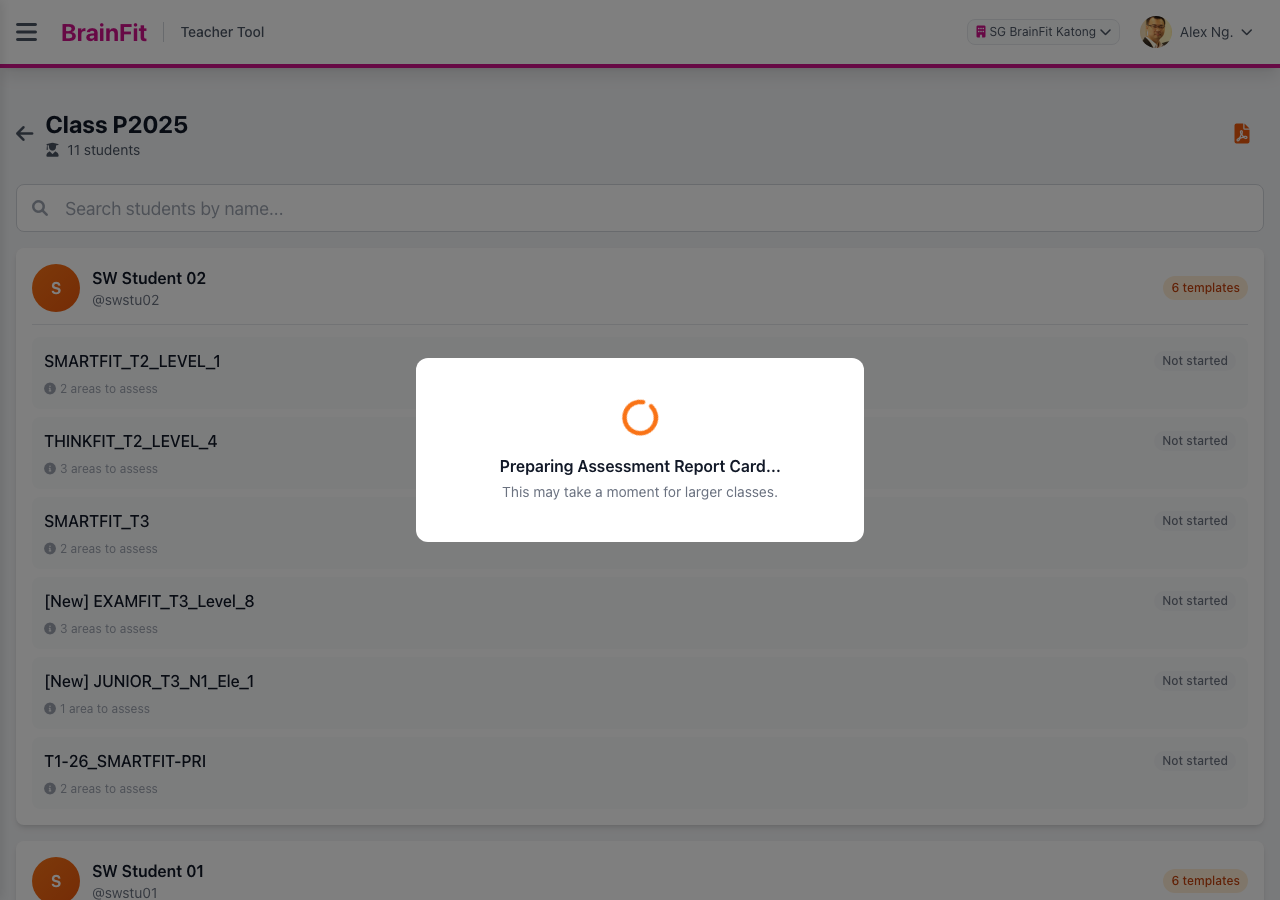
- Once ready, the file(s) download automatically:
- One student selected → downloads a single PDF.
- More than one student, but within one batch → downloads a
.zipfile containing one PDF per report. - More students than fit in one batch → downloads multiple
.zipfiles, one per batch — see below.
Batched downloads for large classes
The print service renders PDFs one at a time, so a single request for a whole class of ~50+ students can
time out. To avoid that, both Print All Students and a multi-student selection from the PDF icon
window now split the download into batches of 15 students and download each batch as its own .zip
file, one after another, instead of one giant request.
- You'll see the progress update in the preparing window: "Preparing batch 2 of 4 (15 students)...".
- Each batch's
.zipdownloads as soon as it's ready — you don't need to wait for all batches before the first file appears in your downloads. - A class of 15 students or fewer is unaffected — it still downloads as a single file, same as before.
Download for a single student
You can also download a report from a specific student's assessment page — useful when you only need one student's, or one template's, report.
- Open a student's assessment page (from the class list, tap one of the student's assessment templates).
- Click the PDF icon in the top-right corner.

The report generated here covers only the template you're currently viewing.
A few things to know
- One PDF per template. If a student has more than one assessment template (e.g. Term 1 and Term 2), each template prints as its own separate PDF — never merged into one document. A class-wide download for a student with several templates will include several files for that student in the zip.
- Not-started templates print a report showing "Assessment not available" for that student/template — this is expected, not an error.
- Each PDF is named
{Center}_{Student Name}_Assessment_Report_{Template Name}.pdf, so files stay identifiable even after unzipping a large batch.
Program-based report header
The header text on the printed PDF depends on whether the template has a Program attached:
- Template has a Program attached: the header reads "BrainFit
Type", whereTypeis that Program's Type — one of Junior, Scholar, Baby, or Premium (e.g. "BrainFit Scholar"). - Template has no Program attached (the default for most templates, since Program assignment is manual): the header falls back to a generic "BrainFit".
To get the branded header, attach a Program to the template first — see Managing Assessment Templates and Managing Programs.