How to Access and Print Progress/Completion Reports
Accessing and Printing Progress/Completion Reports
This feature is for SA, ML, CA, Trainer
- Navigate to BrainFit ACP.
- Click Monthly Progress Reports.
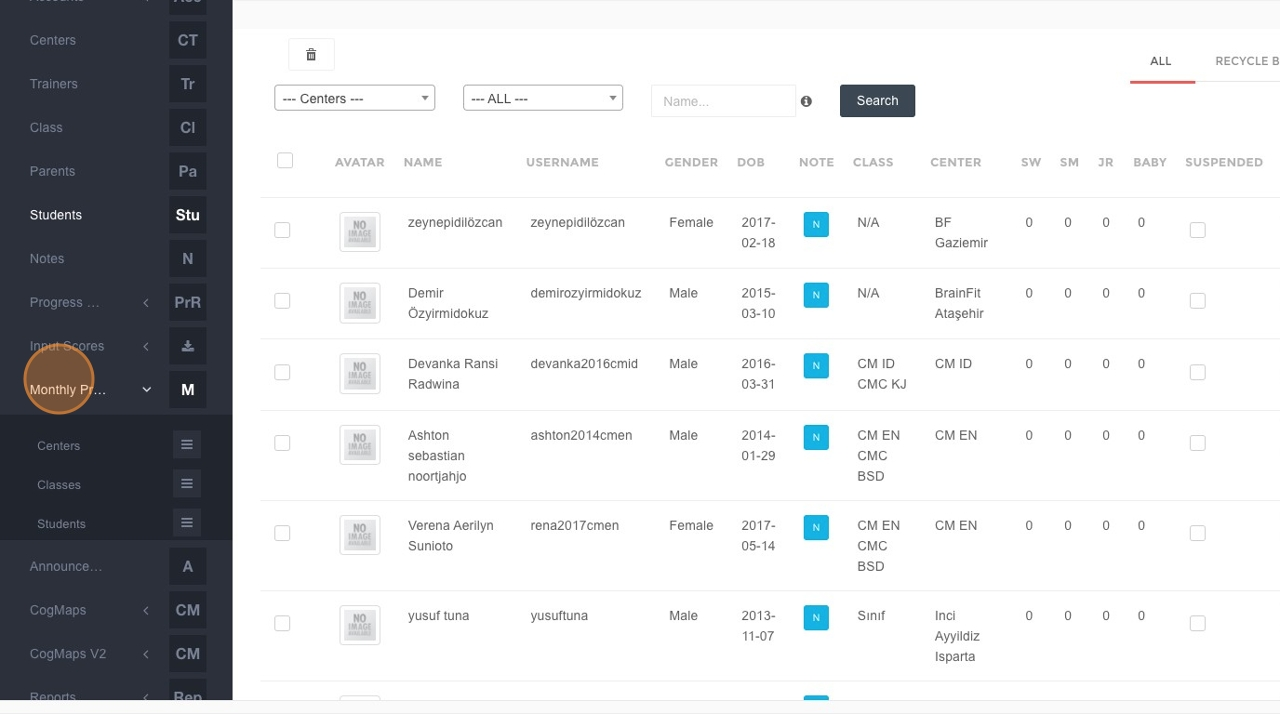
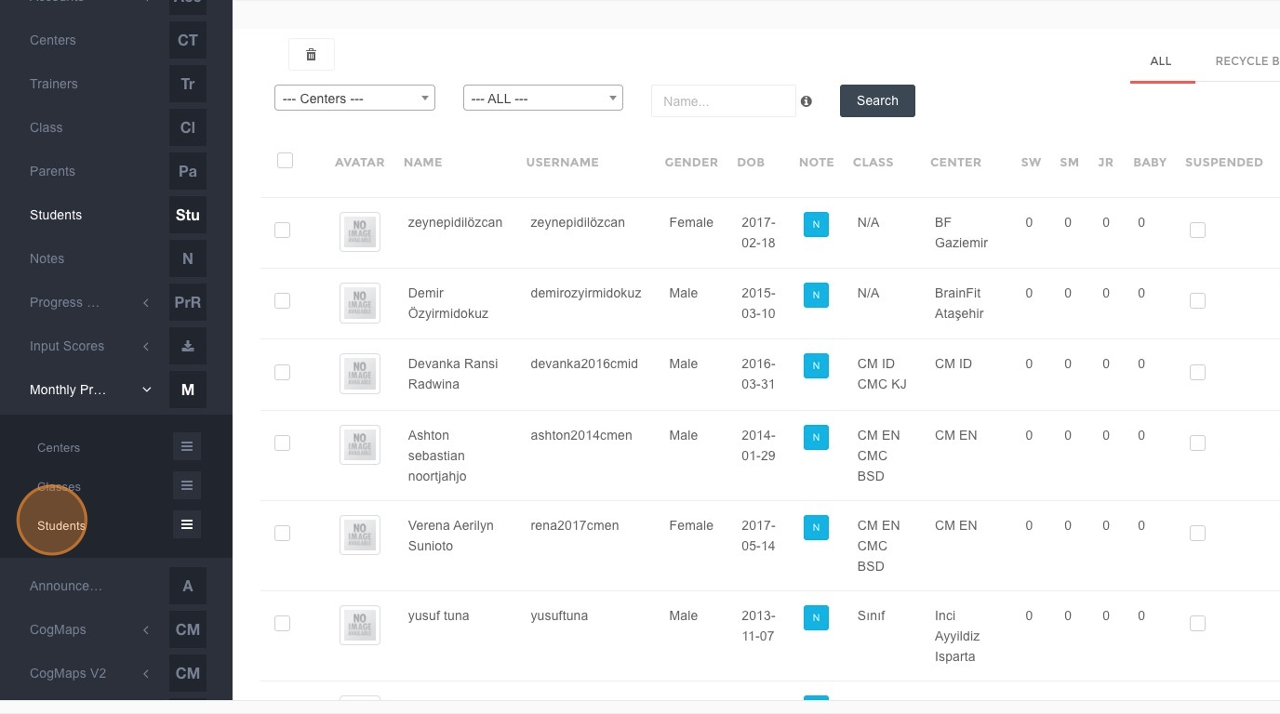
- Click Students in the submenu.
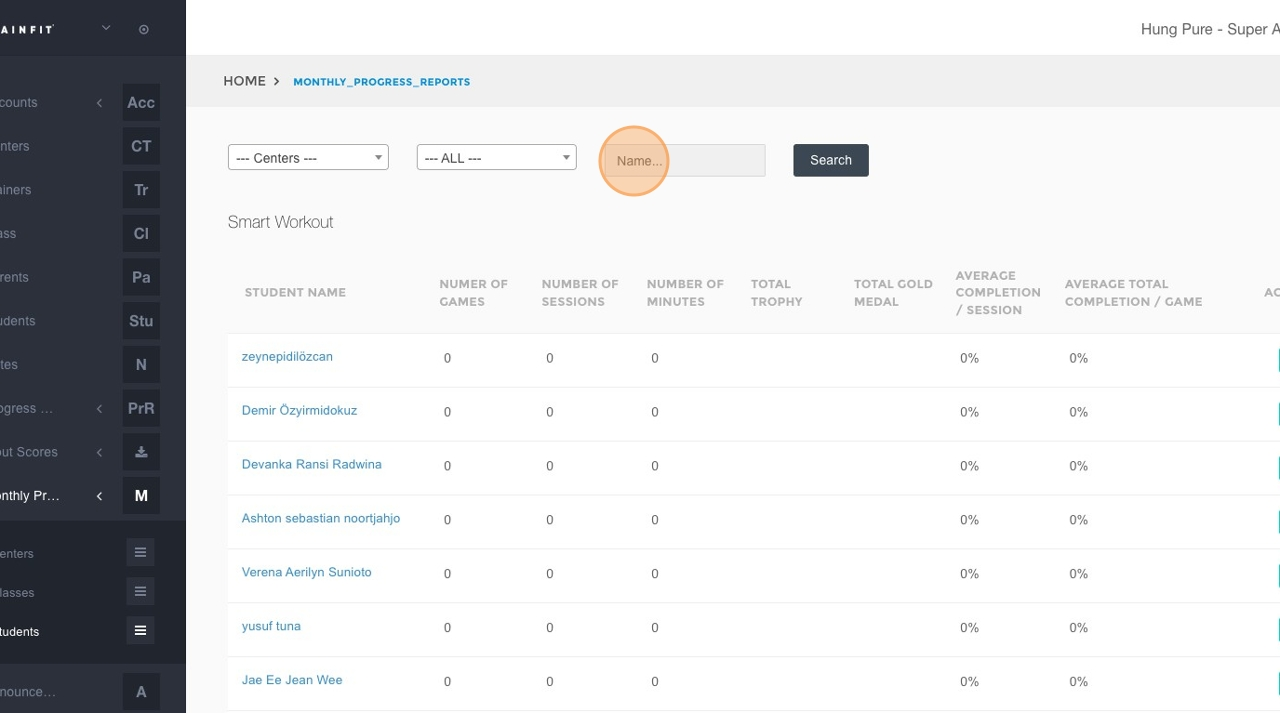
- Click the "Name" field.
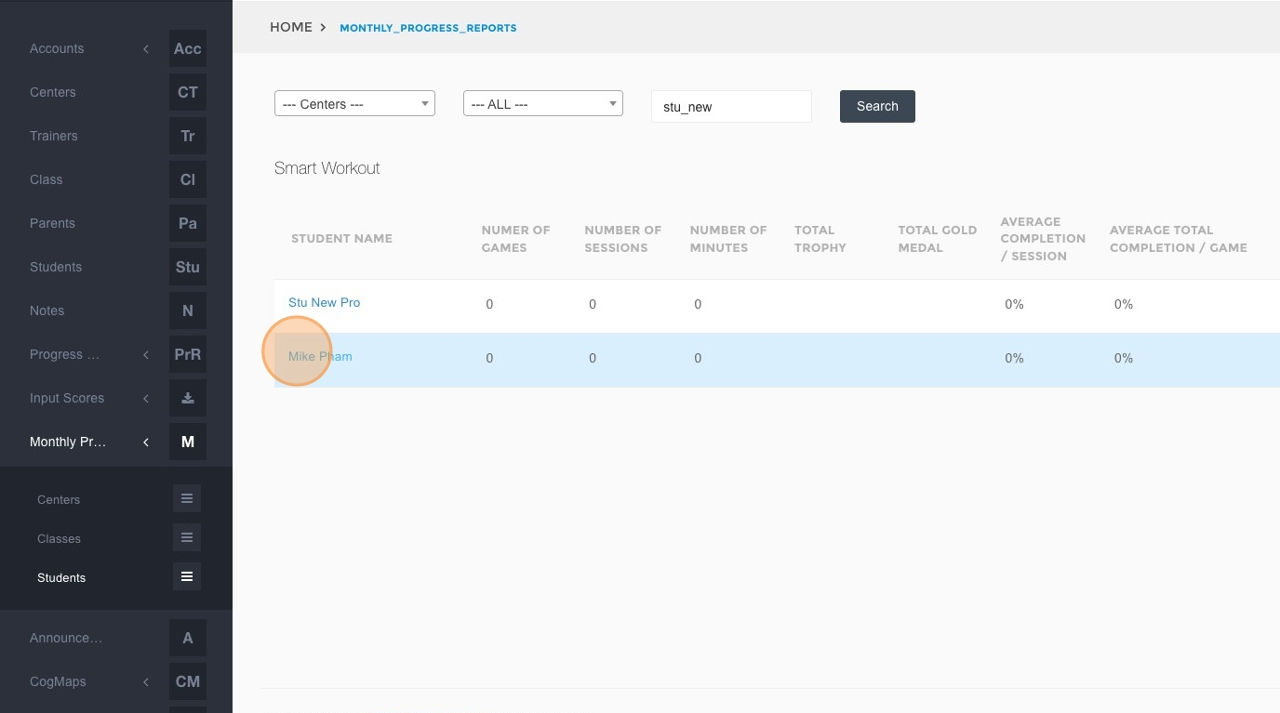
- Type the name of the student you wish to find and click Search.
- Click on the student's name (e.g., "Mike Pham") from the search results.
- Select the desired date or time range for the report.
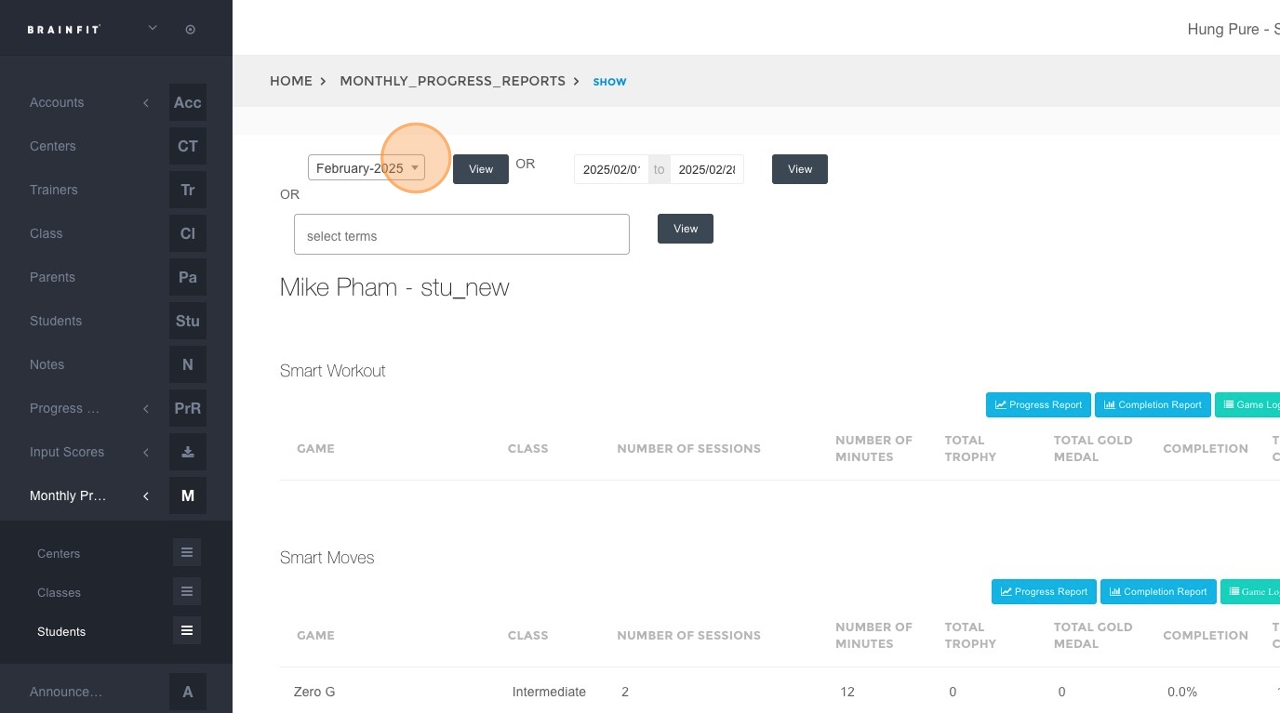
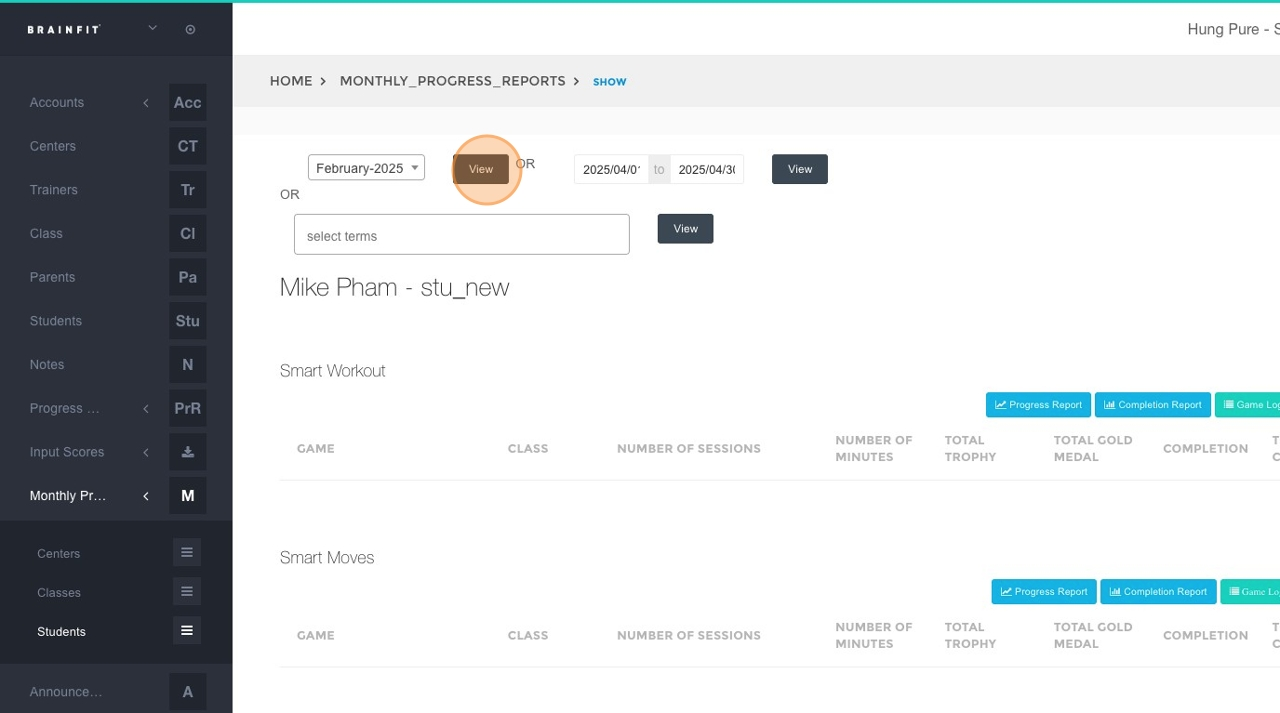
- Click the View button to generate the report based on the selected criteria.
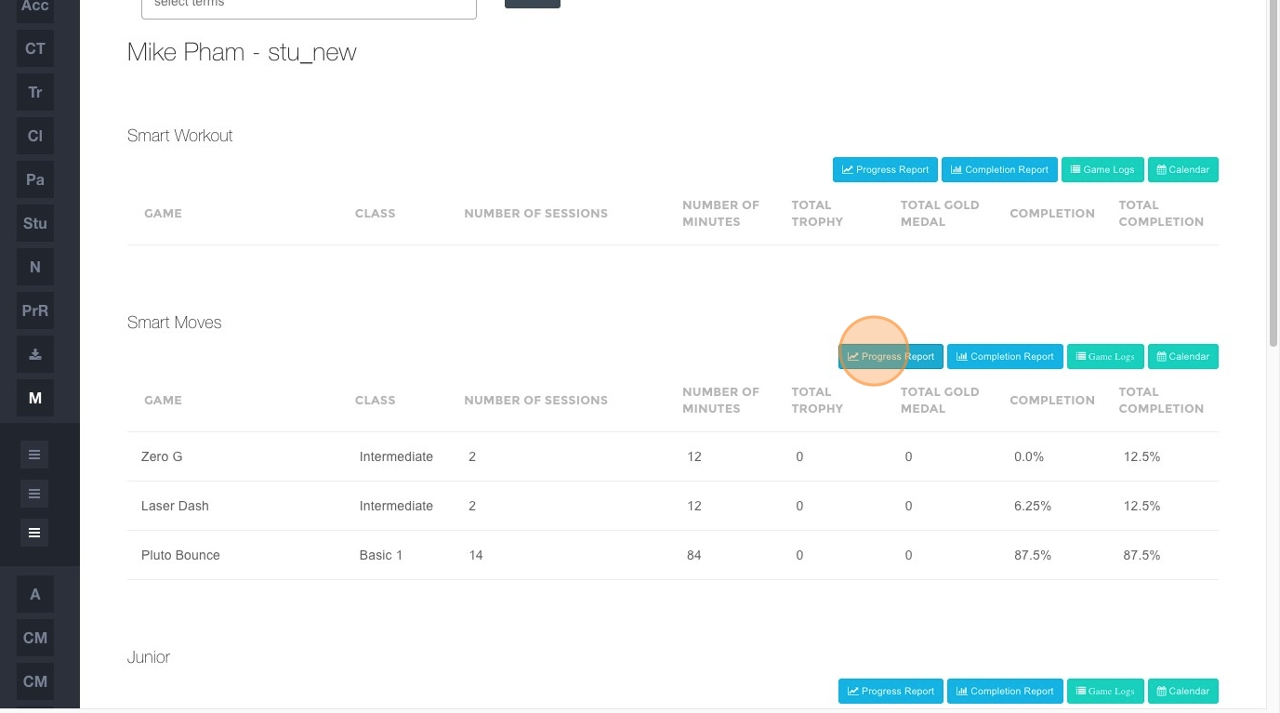
- Click on either Progress Report or Completion Report to select the type of report you want to print.
- Click here to download the report.
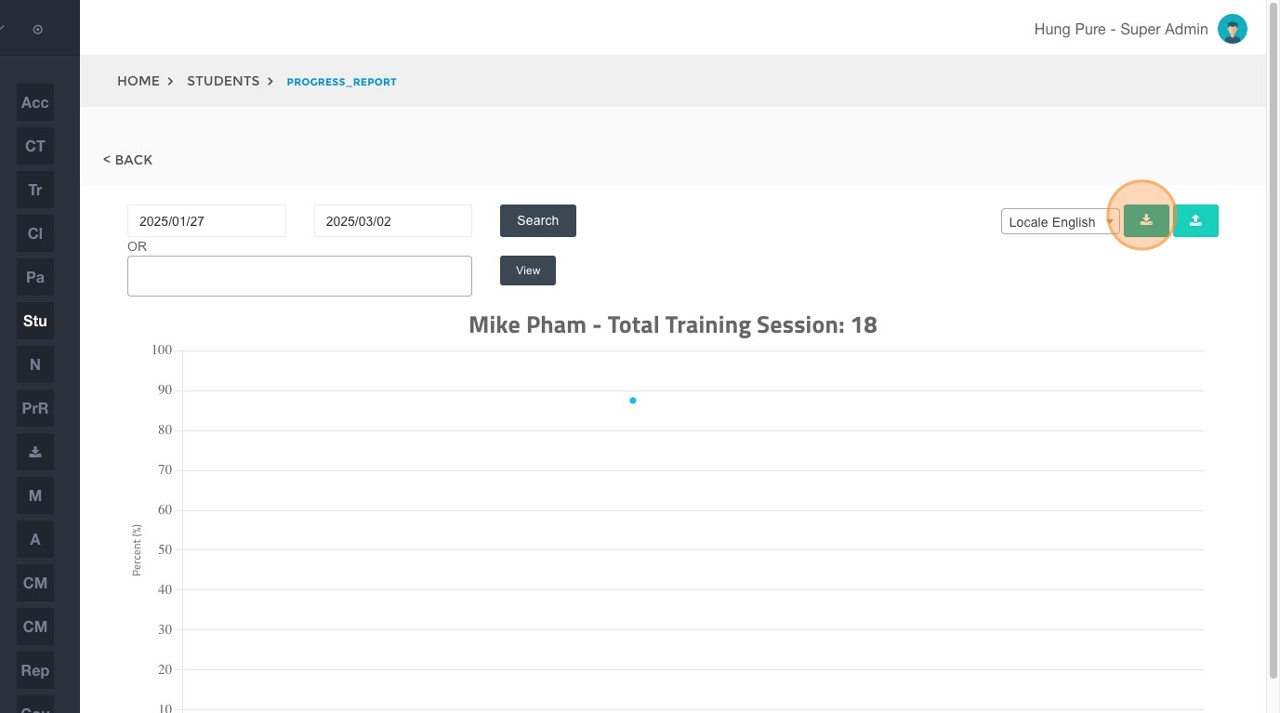
-
Click Save in the download dialog to save the report to your computer.
-
Select the desired folder on your computer where you want to save the report. Once saved, open the file and use your computer's print function (File > Print or Ctrl+P/Cmd+P) to print the report.