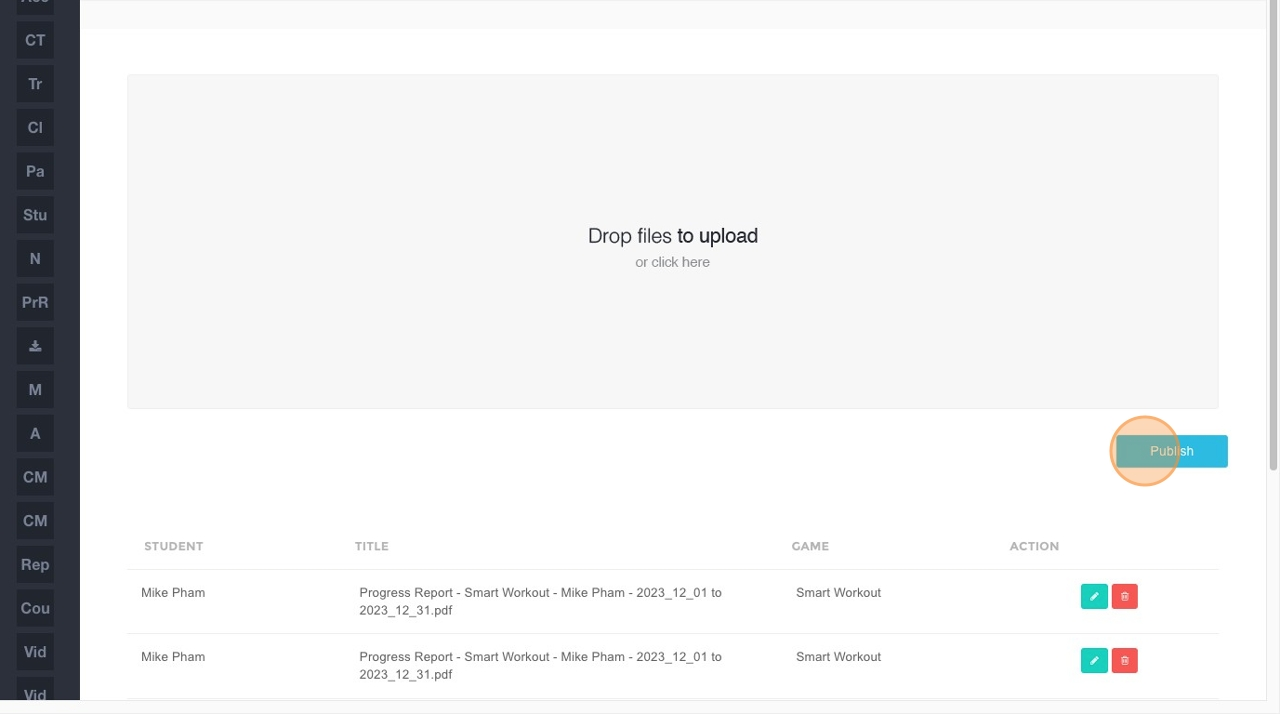
How to Publish SmartWorkout/SmartMoves Progress Reports
This feature is for SA, ML, CA, Trainer
- Navigate to BrainFit ACP.
- Click Monthly Progress Reports.
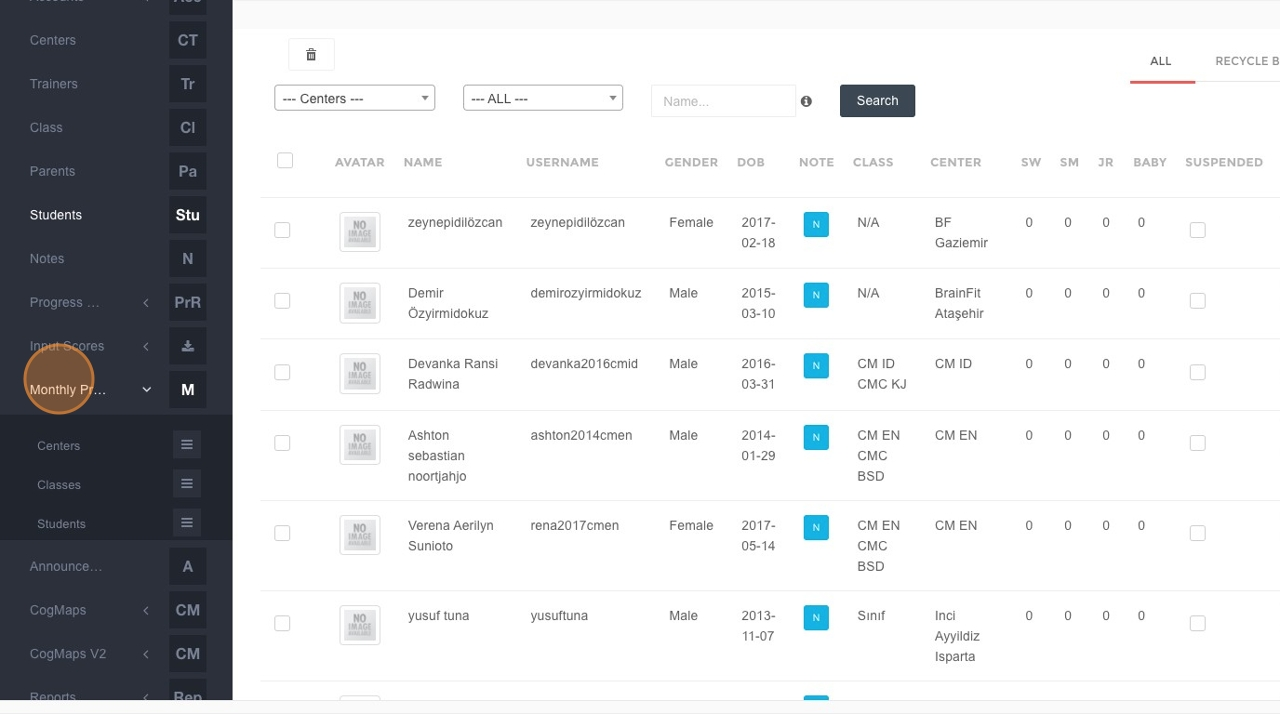
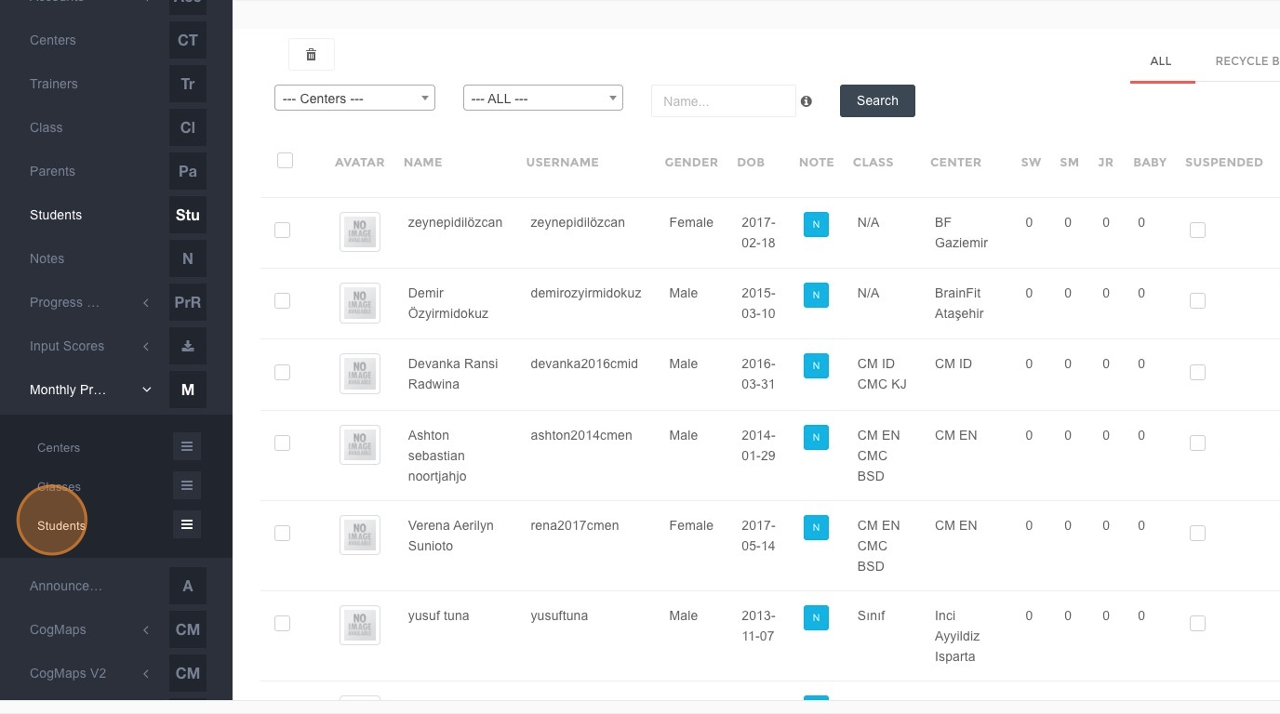
- Click Students in the submenu.
- Click the "Name" field.
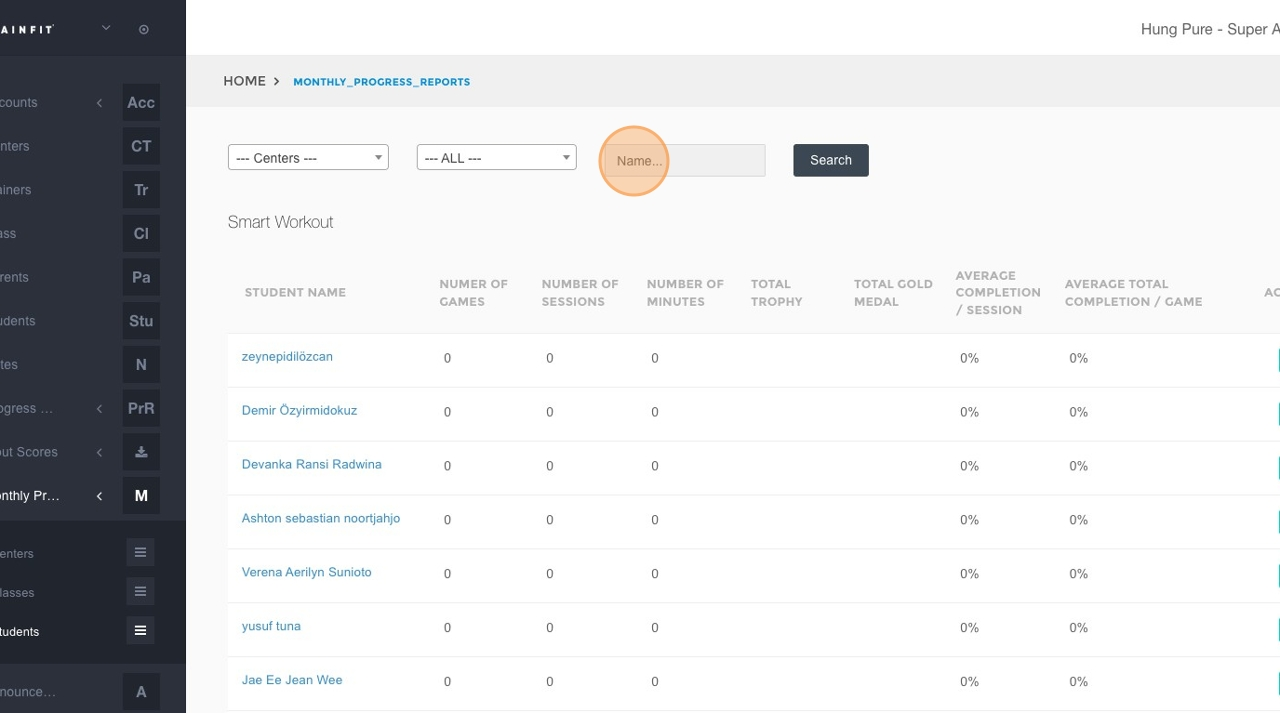
- Type the name of the student you wish to find and click Search.
- Click on the student's name (e.g., "Mike Pham") from the search results.
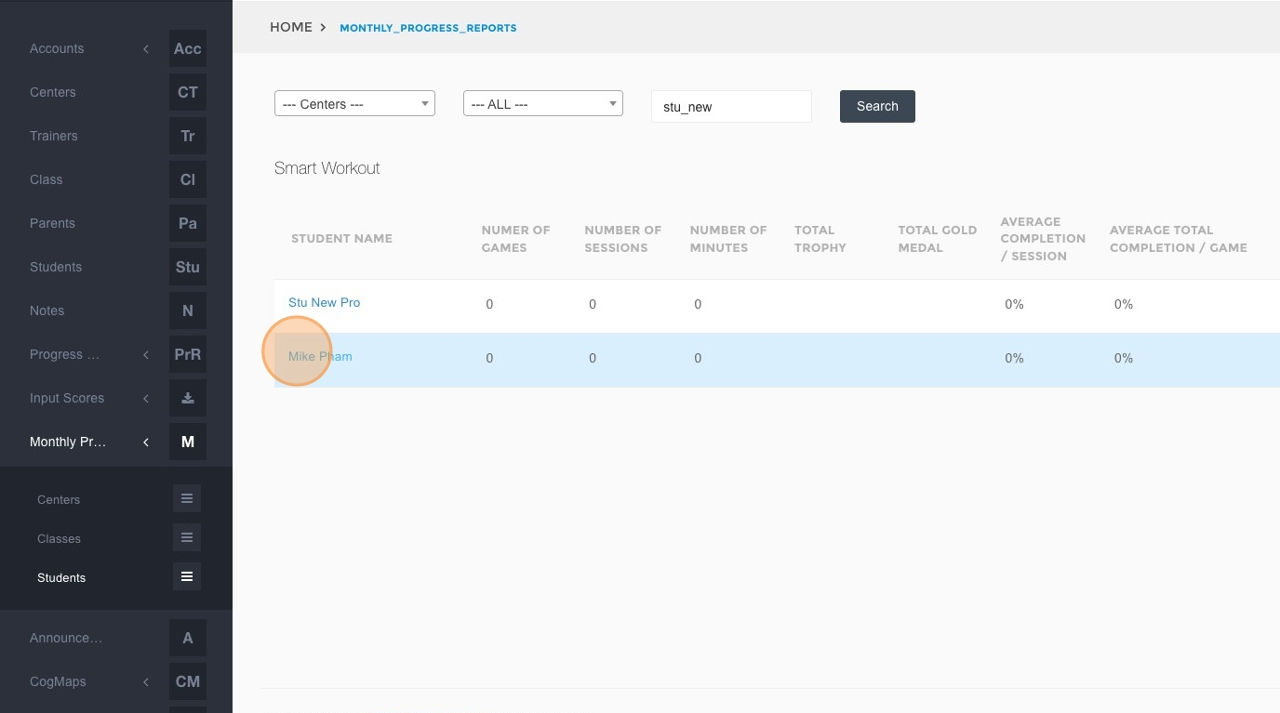
- Select the desired date or time range for the report.
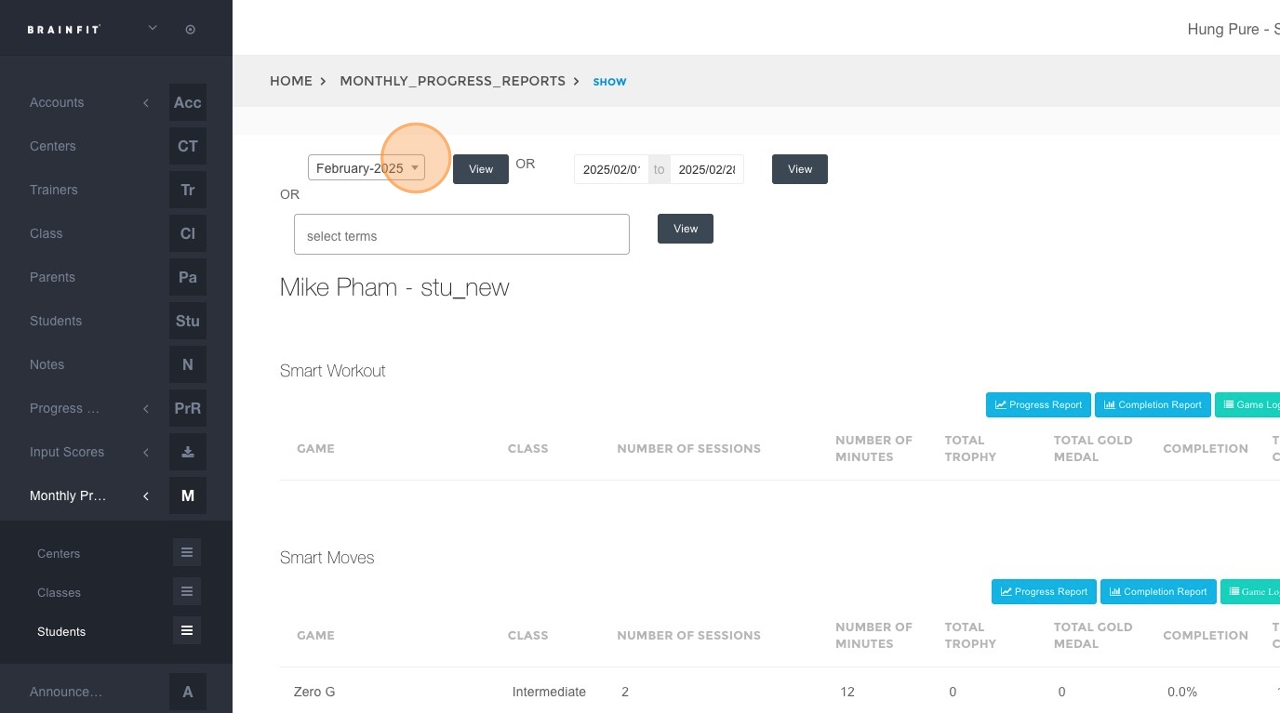
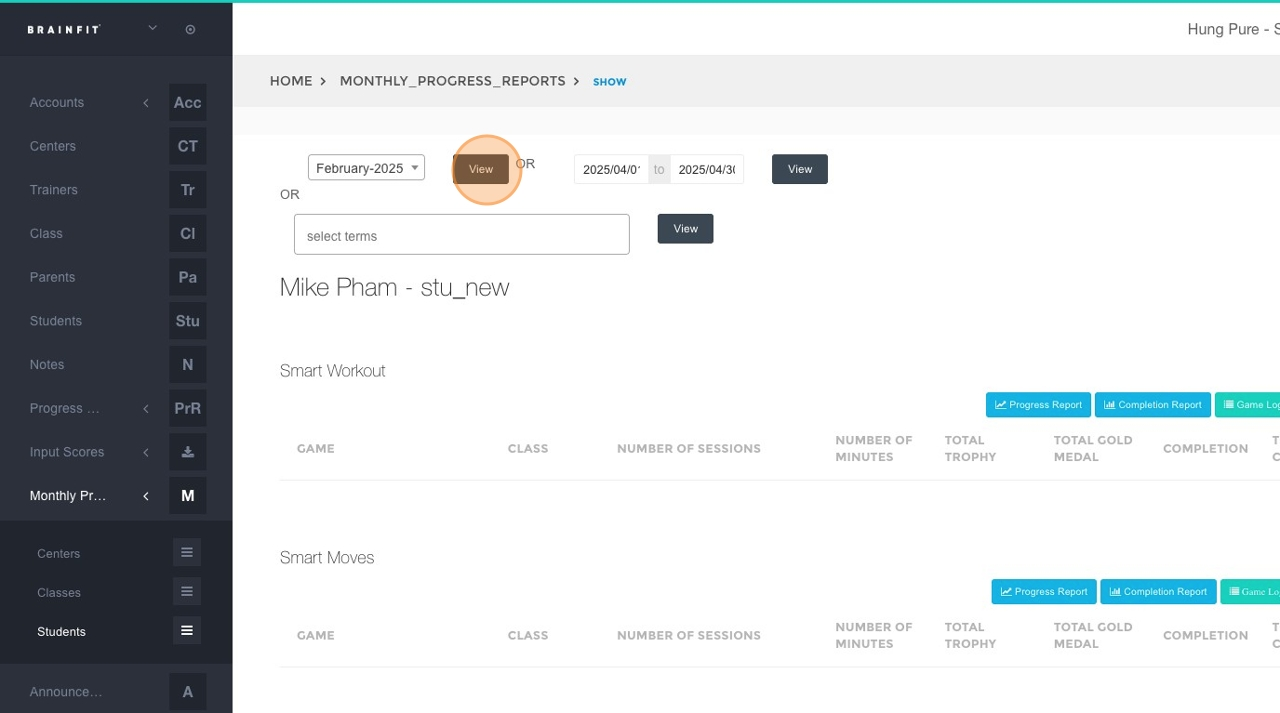
- Click the View button to generate the report based on the selected criteria.
- Click on either Progress Report or Completion Report to select the type of report you want to publish.
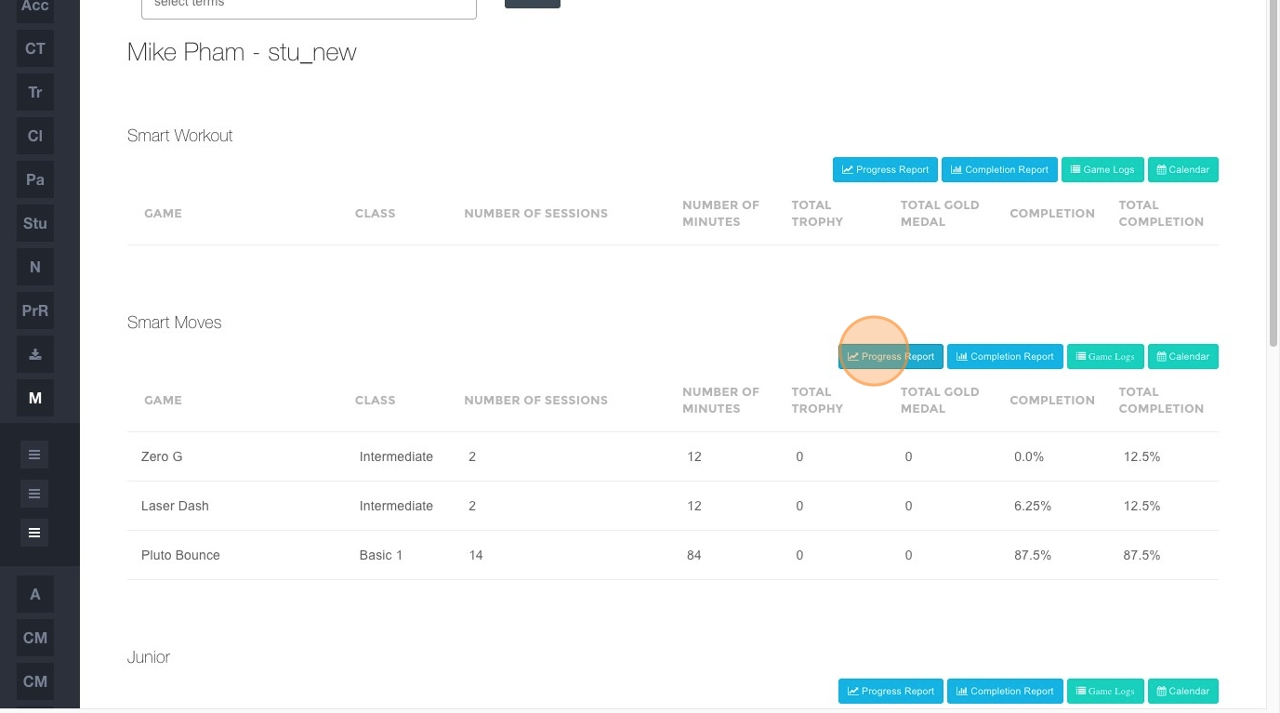
Steps to Upload and Publish Reports
- Click here.
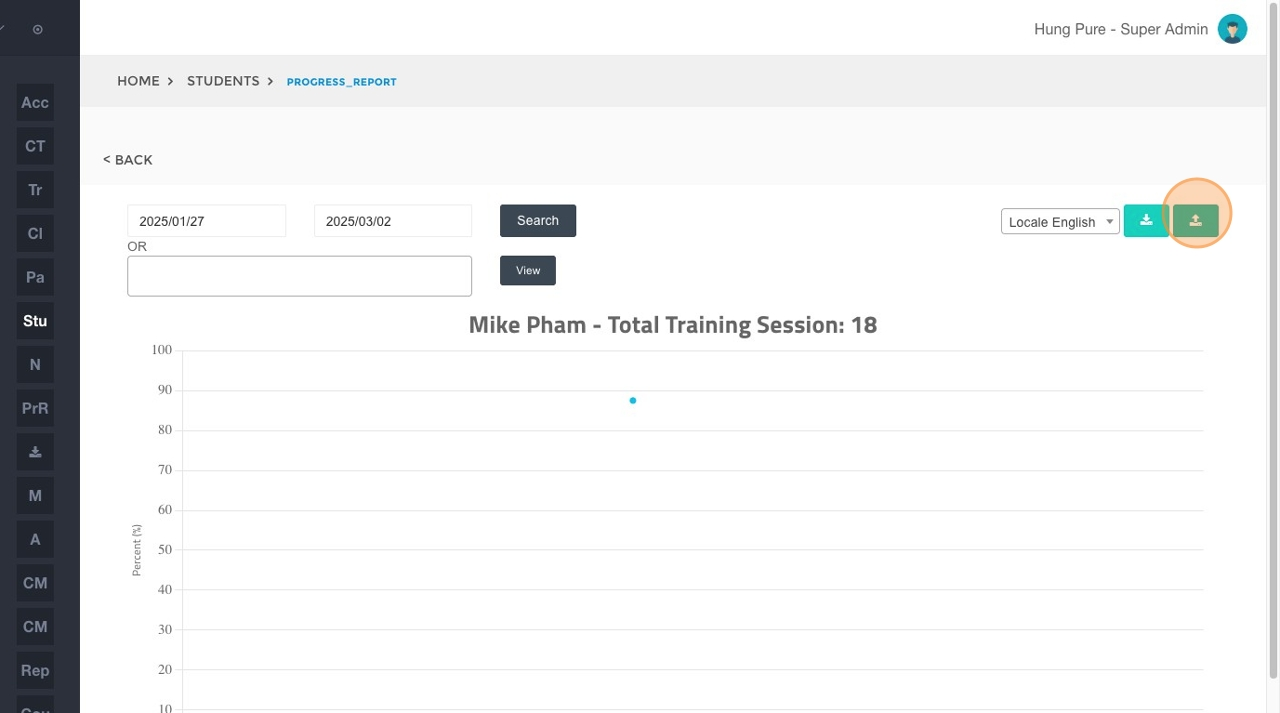
-
Click Save in the download dialog to save the report to your computer if you don’t already have the file. Or click Cancel to skip the download if you already have the file.
-
Click "Drop files here to upload" and choose the file.
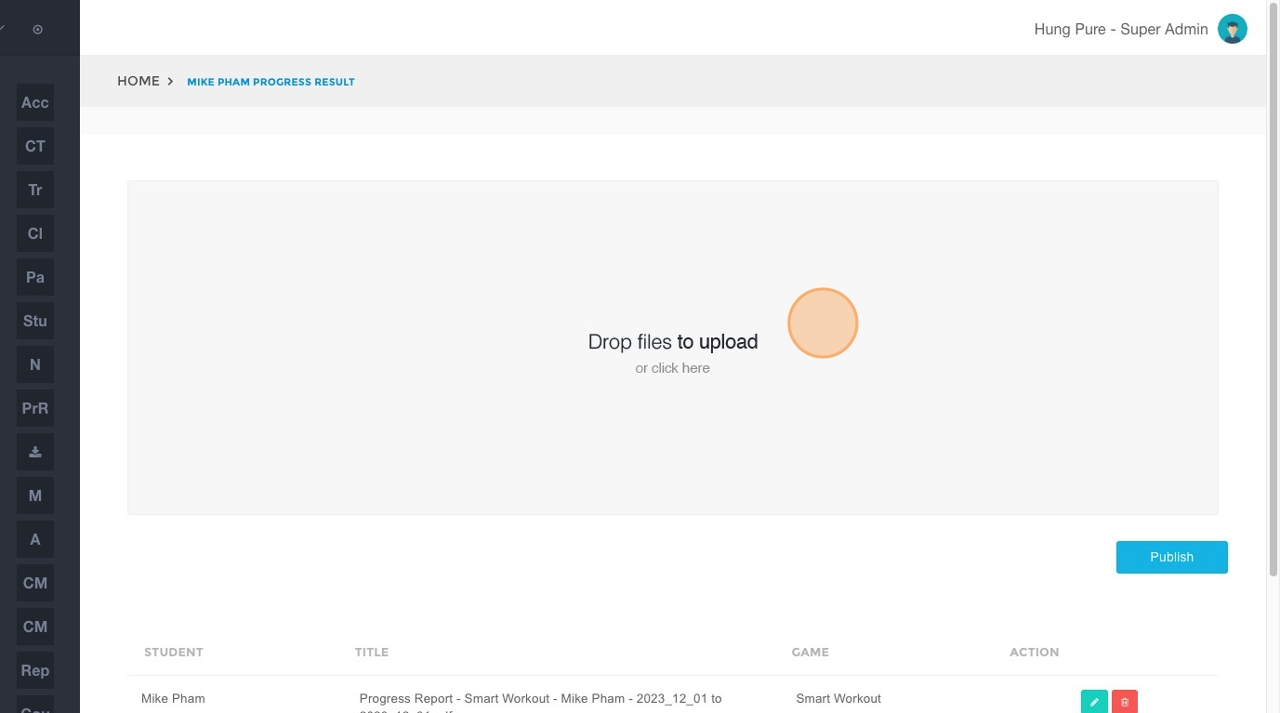
- Click "Publish".